
Review public and invited supplier opportunities
Choose Public opportunities. Review location, deadline, time zone and status. Expand Filter by item group when narrowing opportunities. A budget marked Not released is not a published price.
Before you start
Use your authorized ERP account and the correct company. These screenshots use fictional staging records. Replace the example quantities, dates, warehouses and values with your approved business information. Submission affects the relevant workflow or stock ledger; review the draft first.
Addresses used in this tutorial
ERP_URL is your organization’s ERP address. ACADEMY_URL is the Academy base address: staging uses https://erpstaging.nexcommand.ai/academy; production uses https://academy.nexcommand.ai. Saved record IDs and temporary draft IDs differ between installations. Course IDs and element IDs in the example are not portable to another installation.
Supplier Portal address and preview
SUPPLIER_URL is your organization’s supplier portal. Production uses https://supplier.nexcommand.ai directly; these staging screenshots use https://erpstaging.nexcommand.ai/supplier. The screenshots are labelled staff preview and contain synthetic suppliers. Preview does not grant supplier access, and category saving is disabled. Use an approved supplier account for your own records.
Step-by-step instructions
Browse published opportunities
Choose Public opportunities. Review location, deadline, time zone and status. Expand Filter by item group when narrowing opportunities. A budget marked Not released is not a published price.
- Example / selection
- Synthetic public opportunity; Closed
- Expected result
- The release and response window are visible.
{SUPPLIER_URL}/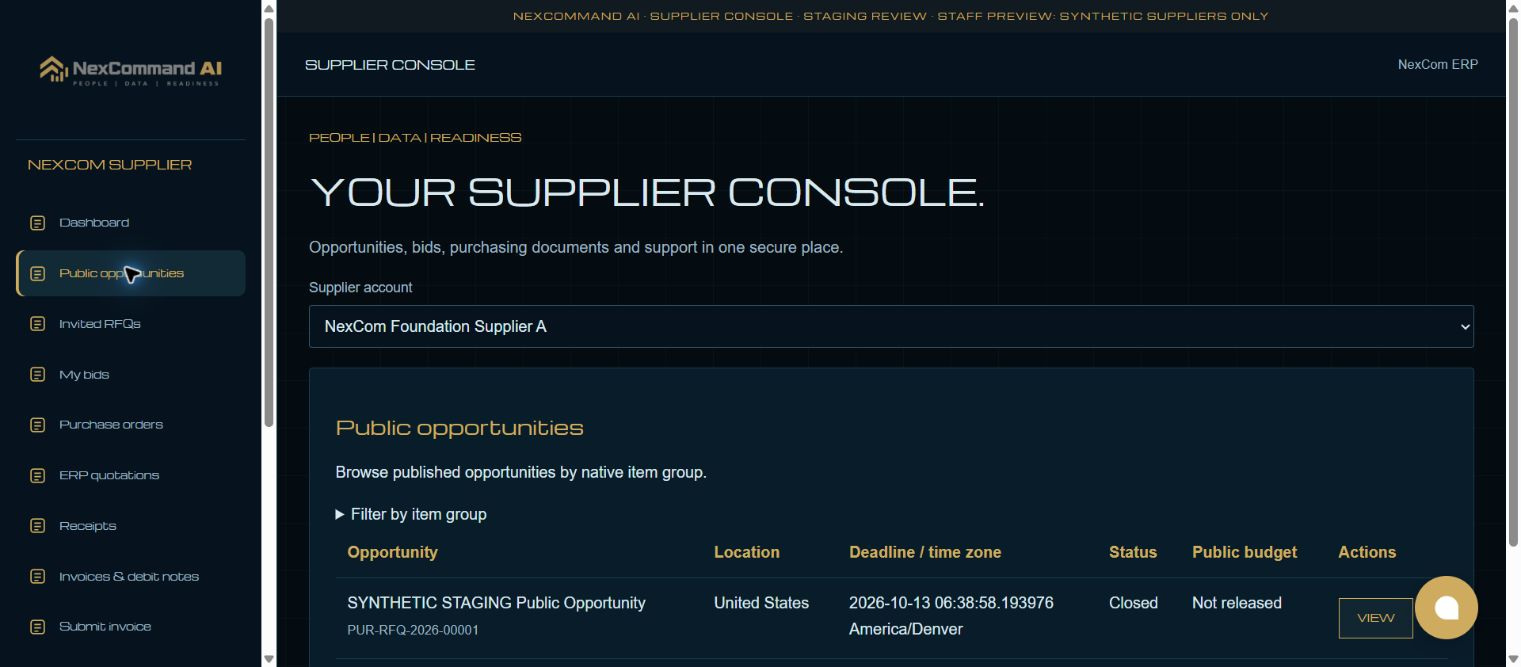
Read requirements and addenda
Choose View. Review each item, quantity, unit, delivery date, released terms and addenda before preparing a response. A closed opportunity does not permit a new response.
- Example / selection
- One synthetic service; delivery October 23, 2026
- Expected result
- The complete released requirement is displayed.
{SUPPLIER_URL}/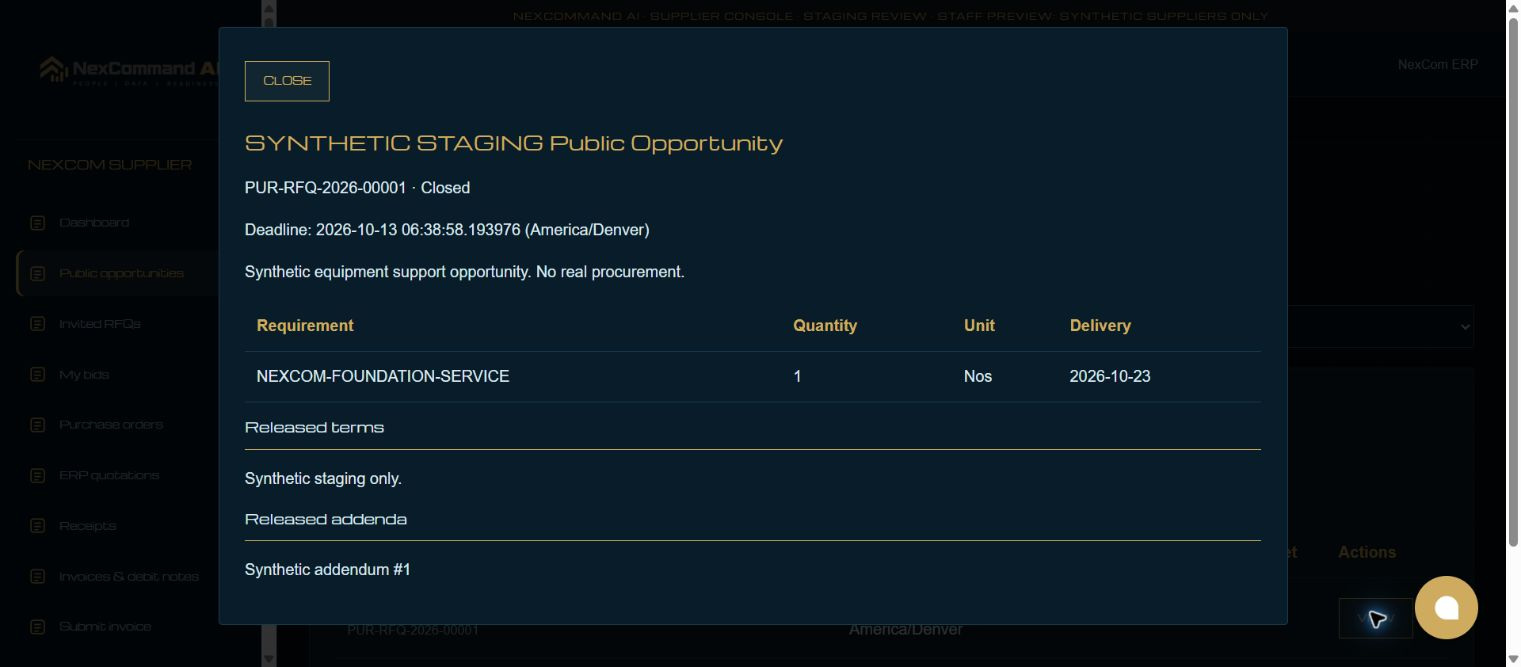
Review invitations separately
Open Invited RFQs to review opportunities released to the selected supplier. Check the deadline and status again rather than assuming an invitation is still open.
- Example / selection
- Synthetic private and expired invitations
- Expected result
- An invitation and an open response window are distinguished.
{SUPPLIER_URL}/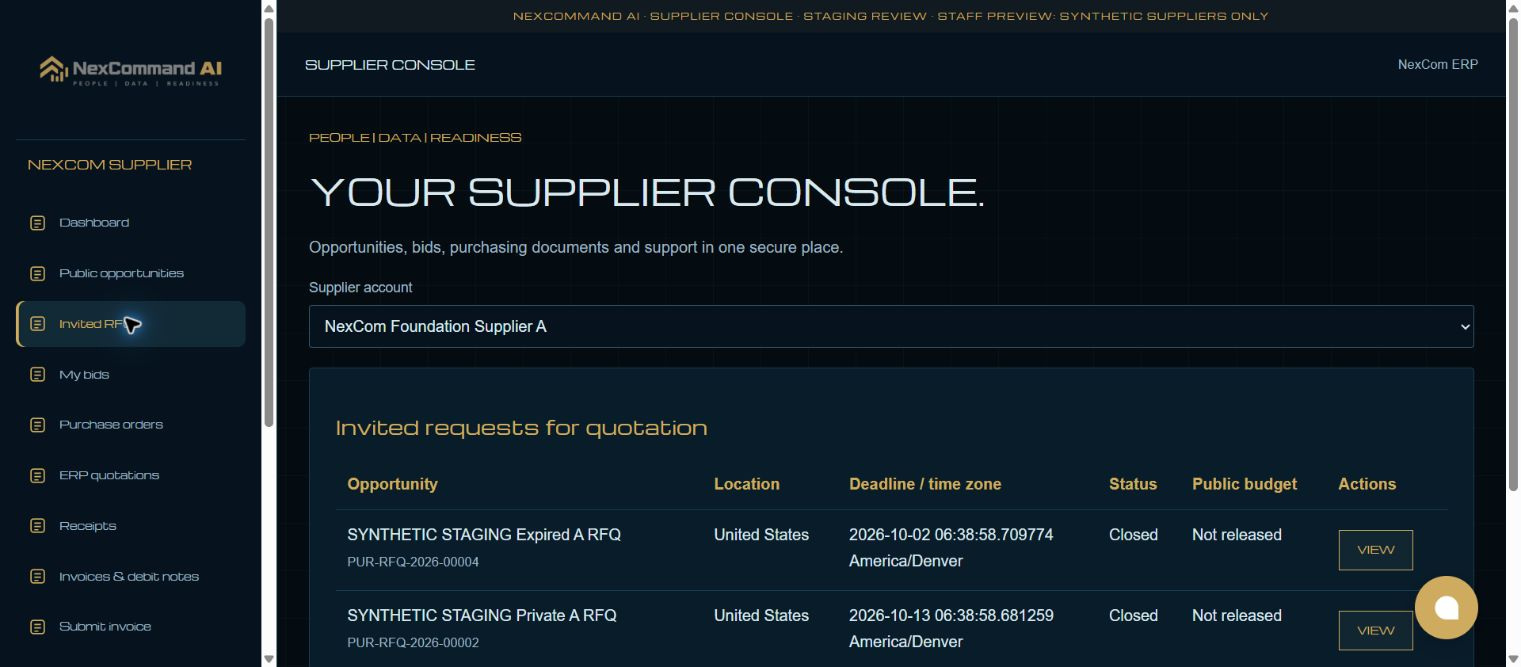
Verified result
Public and invited RFQ lists and published requirements were inspected in staff preview. The sample deadlines had passed. No new bid was submitted or award made.
Troubleshooting
Wait for Link search results and choose the exact record. Leave each edited field to commit its value. Check required dates in every item row. A saved draft and a submitted record are different states. If validation fails, correct the highlighted field and verify the saved result before continuing.