
Review received bids and revisions
Choose My bids. Review RFQ, revision, state, received timestamp, subtotal and Released decision. Received means a response was received for procurement review; it does not mean an award.
Before you start
Use your authorized ERP account and the correct company. These screenshots use fictional staging records. Replace the example quantities, dates, warehouses and values with your approved business information. Submission affects the relevant workflow or stock ledger; review the draft first.
Addresses used in this tutorial
ERP_URL is your organization’s ERP address. ACADEMY_URL is the Academy base address: staging uses https://erpstaging.nexcommand.ai/academy; production uses https://academy.nexcommand.ai. Saved record IDs and temporary draft IDs differ between installations. Course IDs and element IDs in the example are not portable to another installation.
Supplier Portal address and preview
SUPPLIER_URL is your organization’s supplier portal. Production uses https://supplier.nexcommand.ai directly; these staging screenshots use https://erpstaging.nexcommand.ai/supplier. The screenshots are labelled staff preview and contain synthetic suppliers. Preview does not grant supplier access, and category saving is disabled. Use an approved supplier account for your own records.
Step-by-step instructions
Open My bids
Choose My bids. Review RFQ, revision, state, received timestamp, subtotal and Released decision. Received means a response was received for procurement review; it does not mean an award.
- Example / selection
- Revision 4 Received; earlier revisions Superseded
- Expected result
- The current and historical responses are distinguished.
{SUPPLIER_URL}/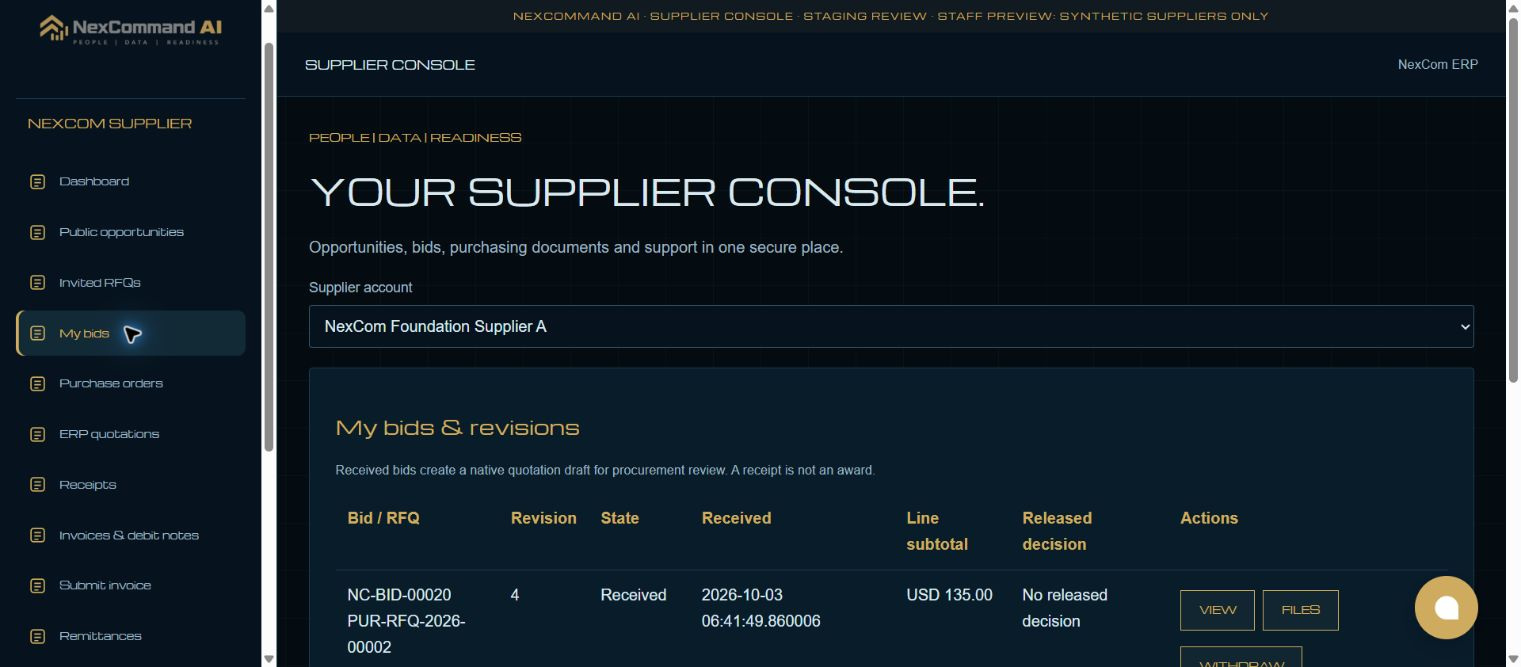
Inspect the response
Choose View on the current revision. Review quantities, units, rates, amounts, terms, quoted taxes, deviations and released decision. Use Files for supporting evidence where available.
- Example / selection
- NC-BID-00020; one unit at USD 135
- Expected result
- The recorded response details are visible.
{SUPPLIER_URL}/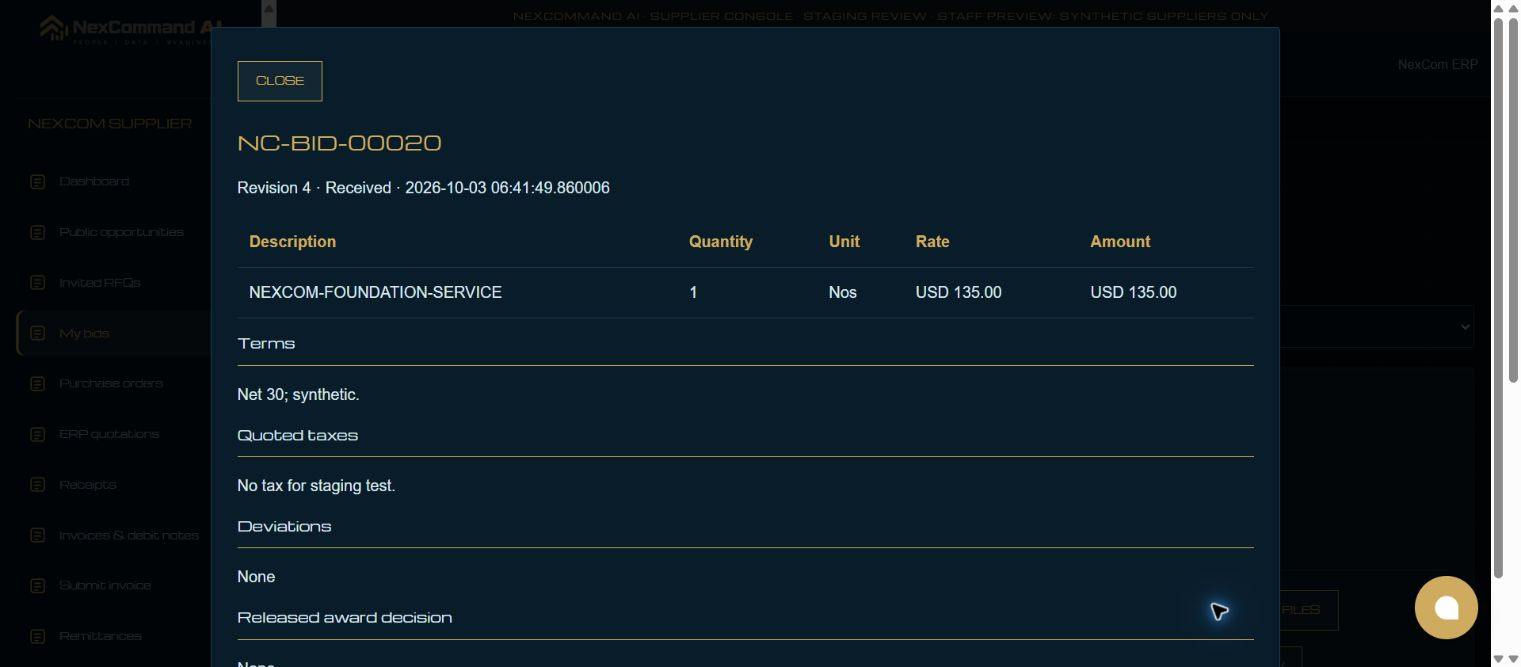
Verified result
Existing synthetic bid revisions were reviewed. Revision 4 was Received and earlier revisions were Superseded. No new bid, withdrawal or procurement award was performed.
Troubleshooting
Wait for Link search results and choose the exact record. Leave each edited field to commit its value. Check required dates in every item row. A saved draft and a submitted record are different states. If validation fails, correct the highlighted field and verify the saved result before continuing.