
Create a subcontracting order
Choose Supply Chain → Subcontracting. Before creating the order, prepare a non-stock service item, a subcontracted finished-good item, its submitted BOM, and the supplier warehouse.
Before you start
Use your authorized ERP account and the correct company. These screenshots use fictional staging records. Replace the example quantities, dates, warehouses and values with your approved business information. Submission affects the relevant workflow or stock ledger; review the draft first.
Addresses used in this tutorial
ERP_URL is your organization’s ERP address. ACADEMY_URL is the Academy base address: staging uses https://erpstaging.nexcommand.ai/academy; production uses https://academy.nexcommand.ai. Saved record IDs and temporary draft IDs differ between installations. Course IDs and element IDs in the example are not portable to another installation.
Step-by-step instructions
Open subcontracting
Choose Supply Chain → Subcontracting. Before creating the order, prepare a non-stock service item, a subcontracted finished-good item, its submitted BOM, and the supplier warehouse.
- Example / selection
- One assembly requires four bolts and one bracket
- Expected result
- The prerequisites define the supplied materials and purchased service.
{ERP_URL}/desk/nexcom-workflow/Supply%20Chain/Subcontracting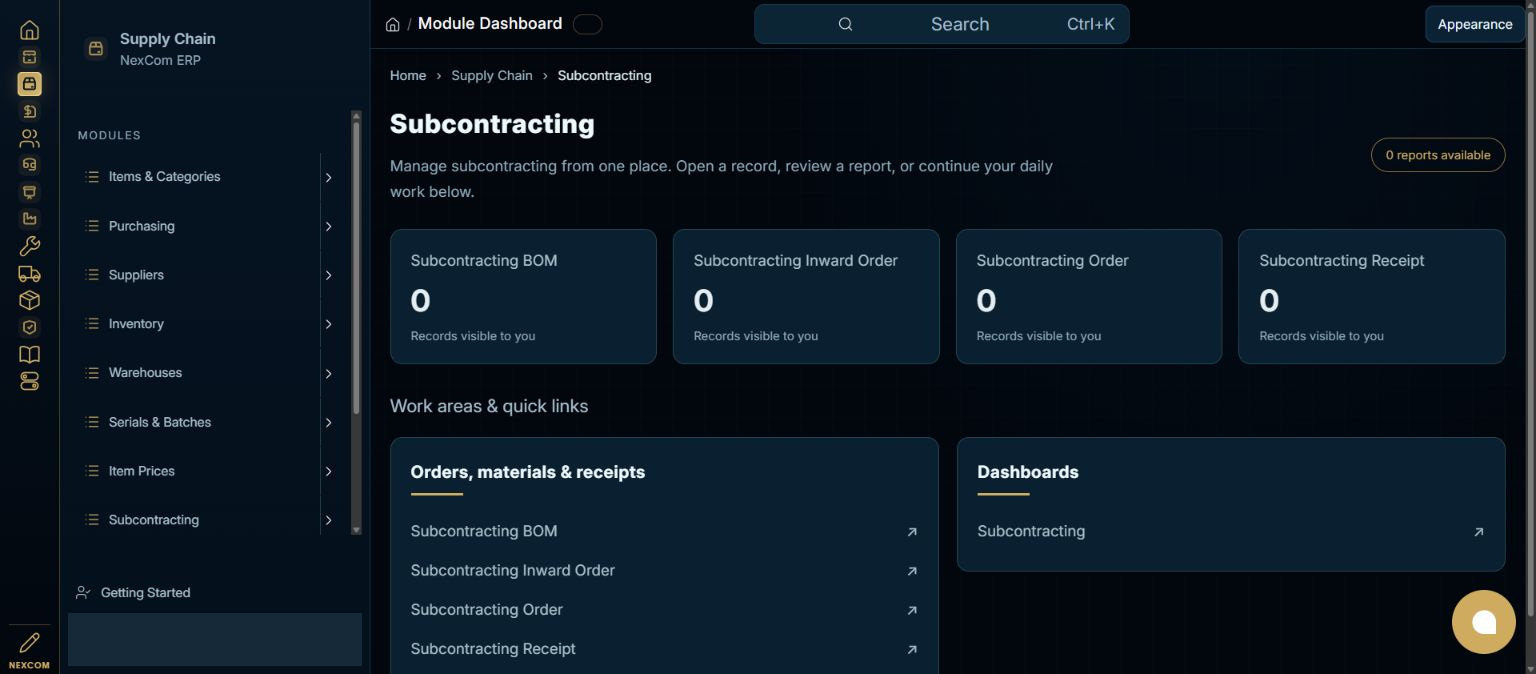
Prepare the source purchase order
Create a Purchase Order for the job worker. Enable Is Subcontracted. Set Supplier Warehouse and the finished-goods target warehouse. In the service row, select the service item and enter Finished Good, Finished Good Quantity, service quantity and rate.
- Example / selection
- Service quantity 1 at USD 25; finished-good quantity 1
- Expected result
- The purchased service is linked to the assembly being produced.
{ERP_URL}/desk/purchase-order/new-purchase-order-{TEMP_ID}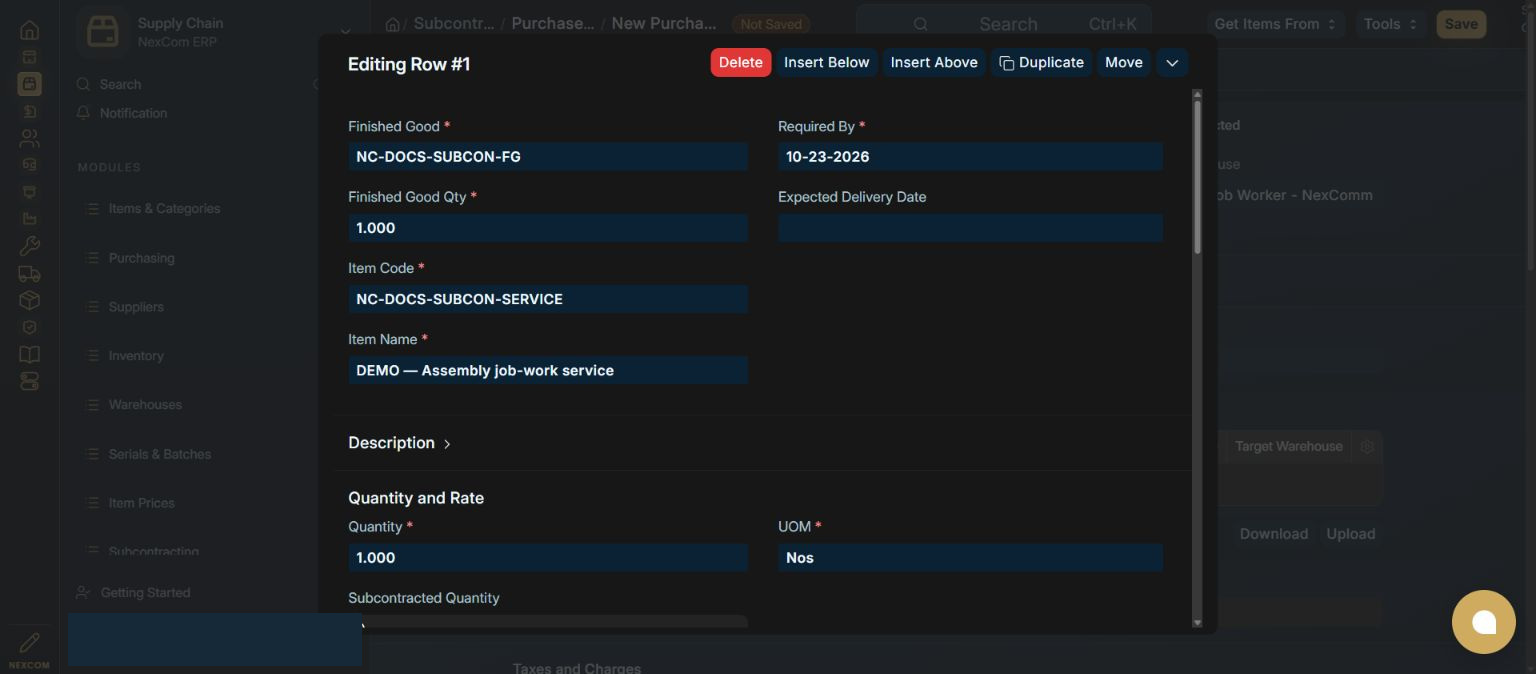
Save the source order
Save and review the supplier, warehouses, required dates, service rate and applicable taxes. A draft purchase order is not eligible as the submitted source order.
- Example / selection
- PUR-ORD-2026-00005
- Expected result
- The source document is saved for approval.
{ERP_URL}/desk/purchase-order/{RECORD_ID}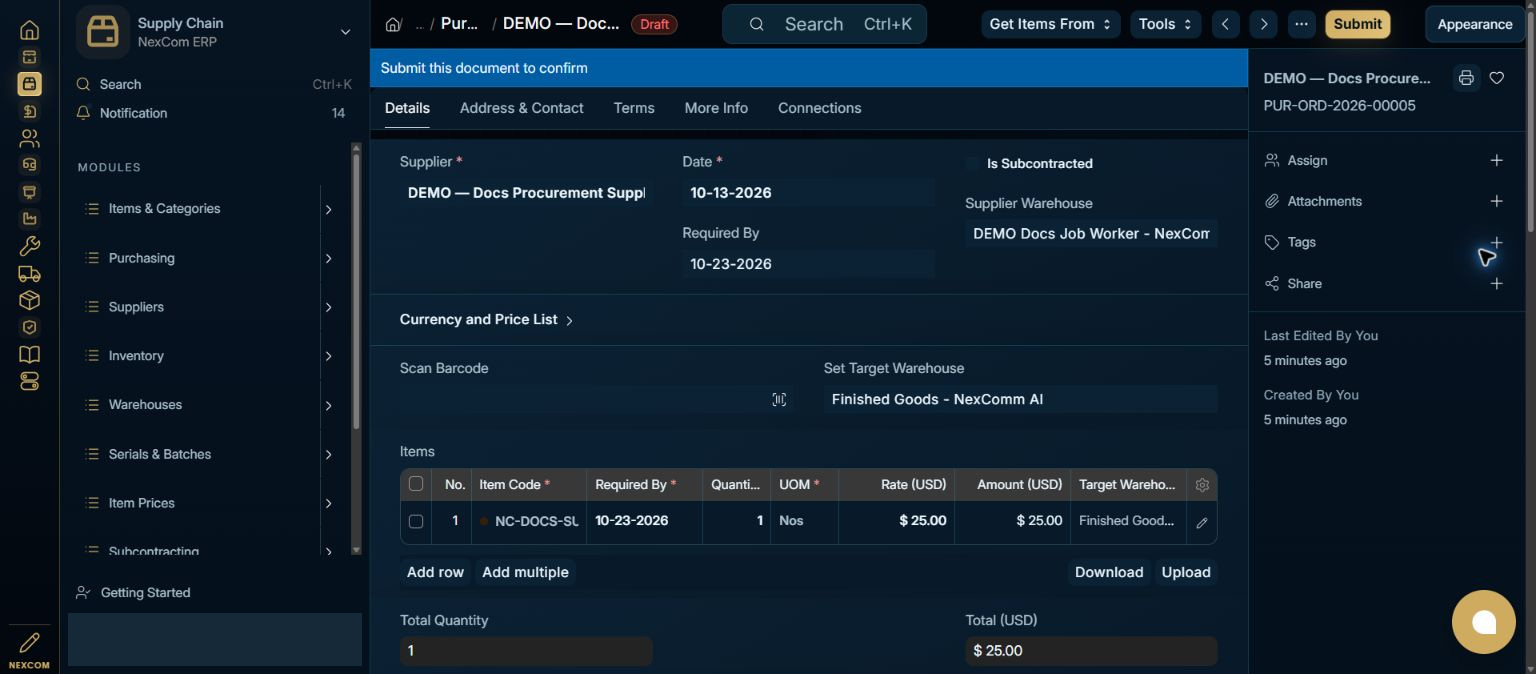
Submit the purchase order
Submit the reviewed purchase order. Live submission represents a purchasing commitment and must follow your approval process. This screenshot uses fictional staging data.
- Example / selection
- To Receive and Bill
- Expected result
- The submitted source is available to create the subcontracting order.
{ERP_URL}/desk/purchase-order/{RECORD_ID}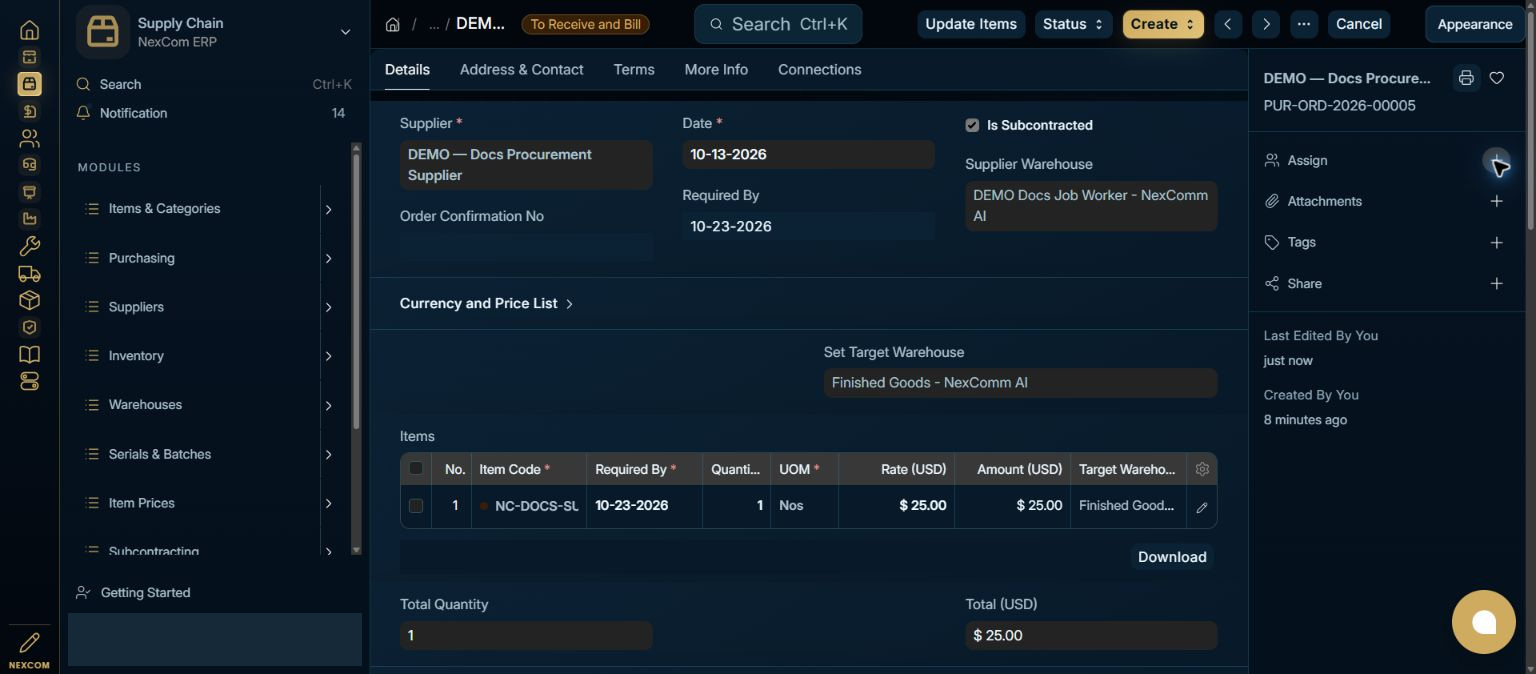
Create the subcontracting order
On the submitted Purchase Order, choose Create → Subcontracting Order.
- Example / selection
- PUR-ORD-2026-00005
- Expected result
- The job worker, service and finished-good quantities carry forward.
{ERP_URL}/desk/purchase-order/{RECORD_ID}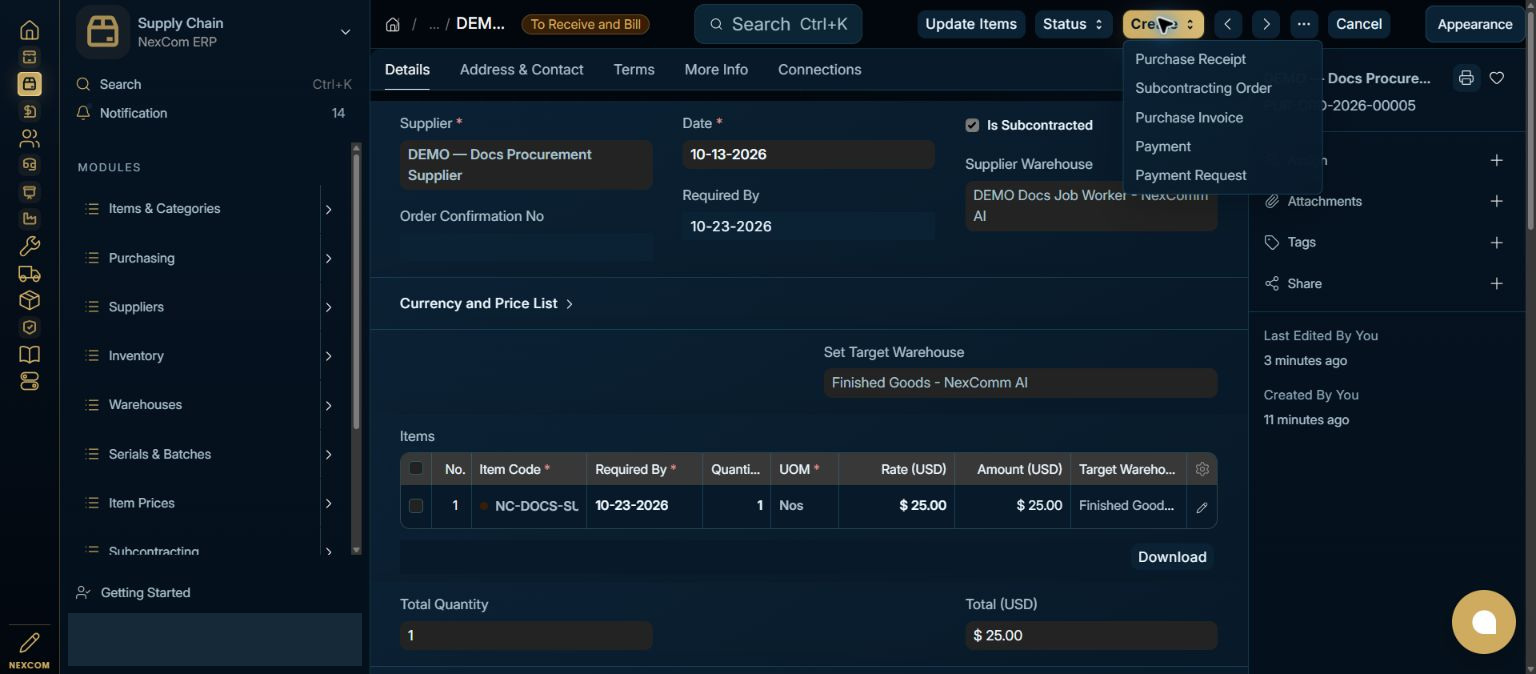
Review the BOM and supply warehouse
Review the finished-good item, BOM, quantity and calculated cost. Set the Reserve Warehouse for supplied materials and inspect every Supplied Items row. Selecting a warehouse alone does not enable the separate Reserve Stock checkbox.
- Example / selection
- Stores; four bolts and one bracket; Reserve Stock off
- Expected result
- The order specifies materials to supply and the finished goods to receive.
{ERP_URL}/desk/subcontracting-order/{RECORD_ID}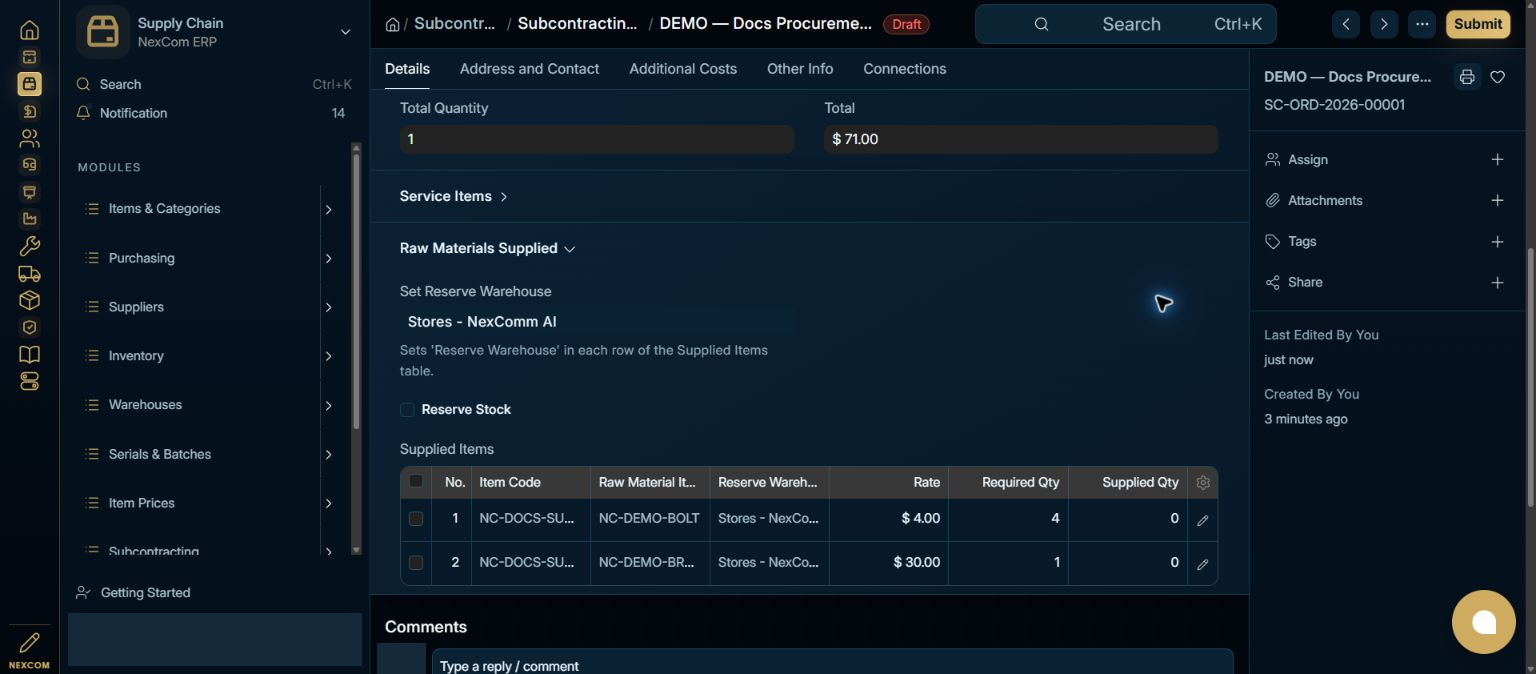
Save and submit
Save, review and submit the order. Verify Open status and the permanent identifier before creating the material transfer.
- Example / selection
- SC-ORD-2026-00001; assembly cost USD 71
- Expected result
- The subcontracting order is submitted.
{ERP_URL}/desk/subcontracting-order/{RECORD_ID}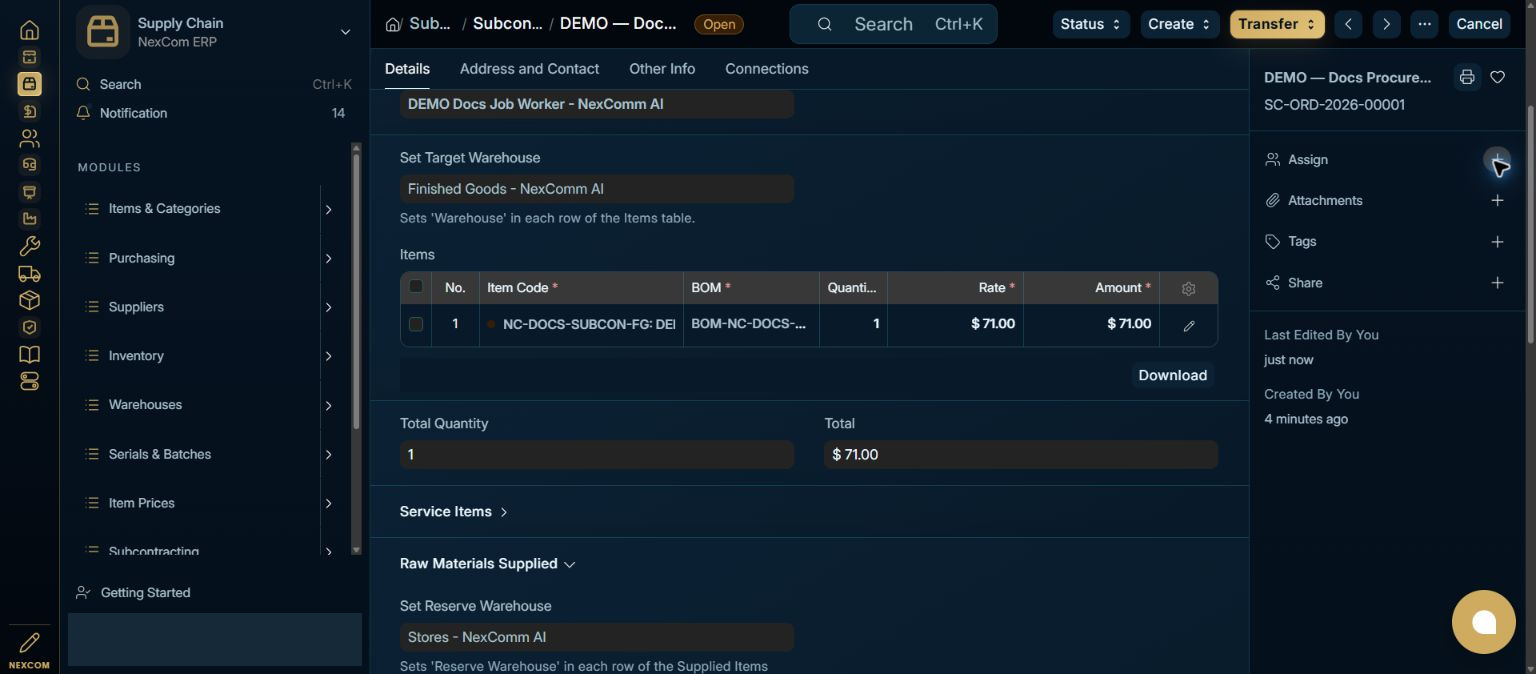
Verified result
The staging purchase order and subcontracting order were submitted. The BOM supplies four bolts at USD 4 and one bracket at USD 30, plus a USD 25 service cost. No live purchase commitment or supplier email was made.
Troubleshooting
Wait for Link search results and choose the exact record. Leave each edited field to commit its value. Check required dates in every item row. A saved draft and a submitted record are different states. If validation fails, correct the highlighted field and verify the saved result before continuing.