
Download and check an issued trainee certificate
In the completed course, open My course → Evidence of achievement. Check the learner, course title, overall progress, success status, score, issue date and validity date. A Passed test result alone is not a substitute for the course-level result.
Before you start
The learner has completed the course requirements and the certificate has actually been issued. Use the learner’s own account or the authorized assessment role. These images show a synthetic staging exercise; personal details, identifiers and QR contents are masked in the published pictures.
Addresses used in this tutorial
ERP_URL is your organization’s ERP address. ACADEMY_URL is the Academy base address: staging uses https://erpstaging.nexcommand.ai/academy; production uses https://academy.nexcommand.ai. Saved record IDs and temporary draft IDs differ between installations. Course IDs and element IDs in the example are not portable to another installation.
Step-by-step instructions
Review evidence of achievement
In the completed course, open My course → Evidence of achievement. Check the learner, course title, overall progress, success status, score, issue date and validity date. A Passed test result alone is not a substitute for the course-level result.
- Example / selection
- Passed; 100%; 1 of 1 points; certificate issued 13 October 2026 and valid until 13 October 2027
- Expected result
- The achievement page shows the issued certificate and its validity, rather than just an enabled issuance setting.
{ACADEMY_URL}/auth/RepositoryEntry/{COURSE_ID}/Certification/0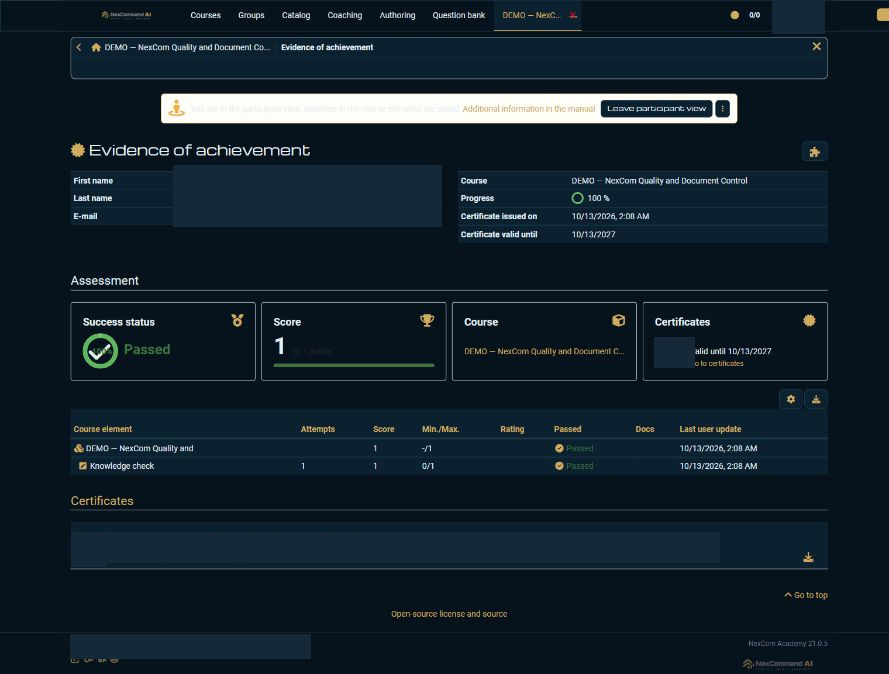
Download the actual certificate
Select Go to certificates or scroll to Certificates. Choose the intended certificate’s Download action. Verify the filename and issue date before sharing the PDF through an authorized channel.
- Example / selection
- Certificates → Download
- Expected result
- The native PDF downloads. The actual download was checked in this staging exercise.
{ACADEMY_URL}/auth/RepositoryEntry/{COURSE_ID}/Certification/0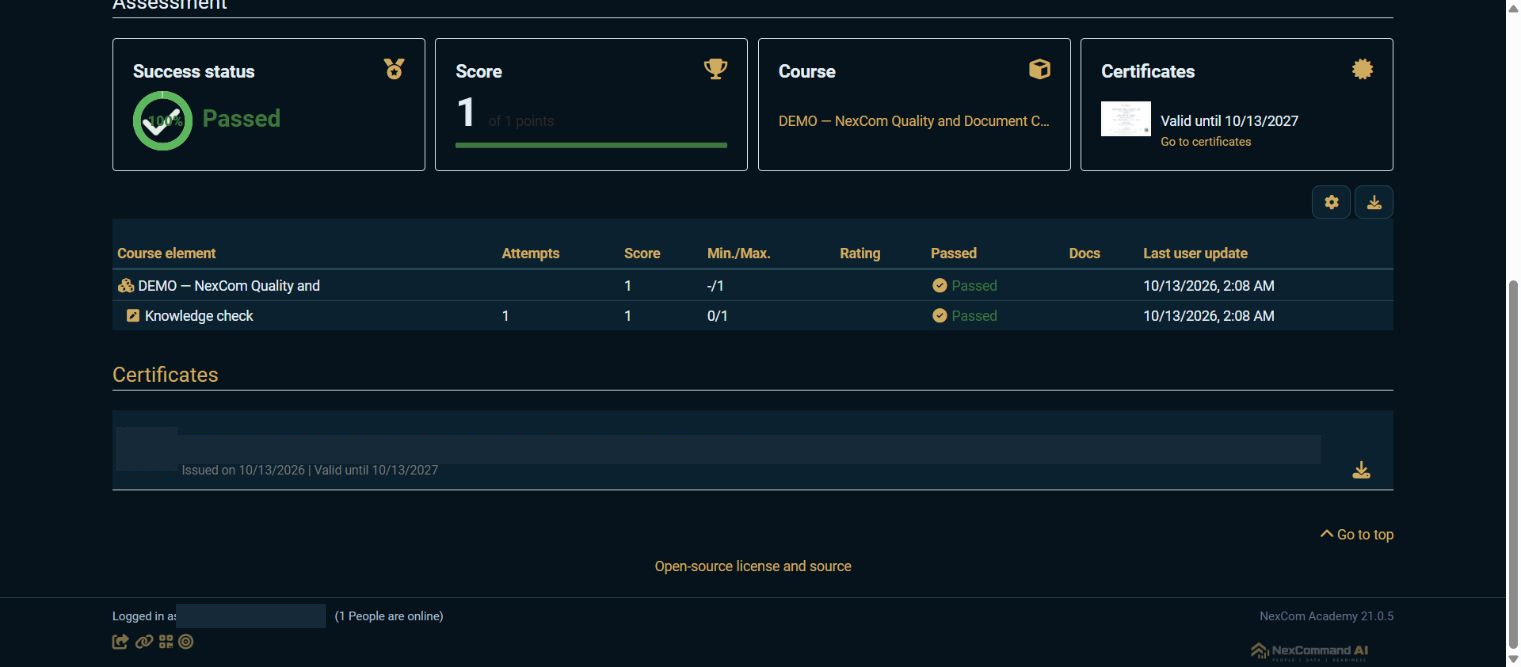
Check the PDF and its QR destination
Open the downloaded PDF. Review the recipient, course, issue date, certificate identifier and result. Scan its QR code to open the issued certificate link and compare it with the achievement record. The QR links to the certificate; it is not an independent declaration of accreditation or organizational compliance. The published demonstration picture hides the identity and QR link to protect the recipient.
- Example / selection
- White branded certificate; result Passed; a readable QR pointing to the staging certificate route
- Expected result
- The PDF’s canonical form values and rendered layout were checked. Its QR was decoded successfully. The certificate is evidence of this demo course outcome.
{ACADEMY_URL}/certificate/{CERTIFICATE_ID}/{CERTIFICATE_FILENAME}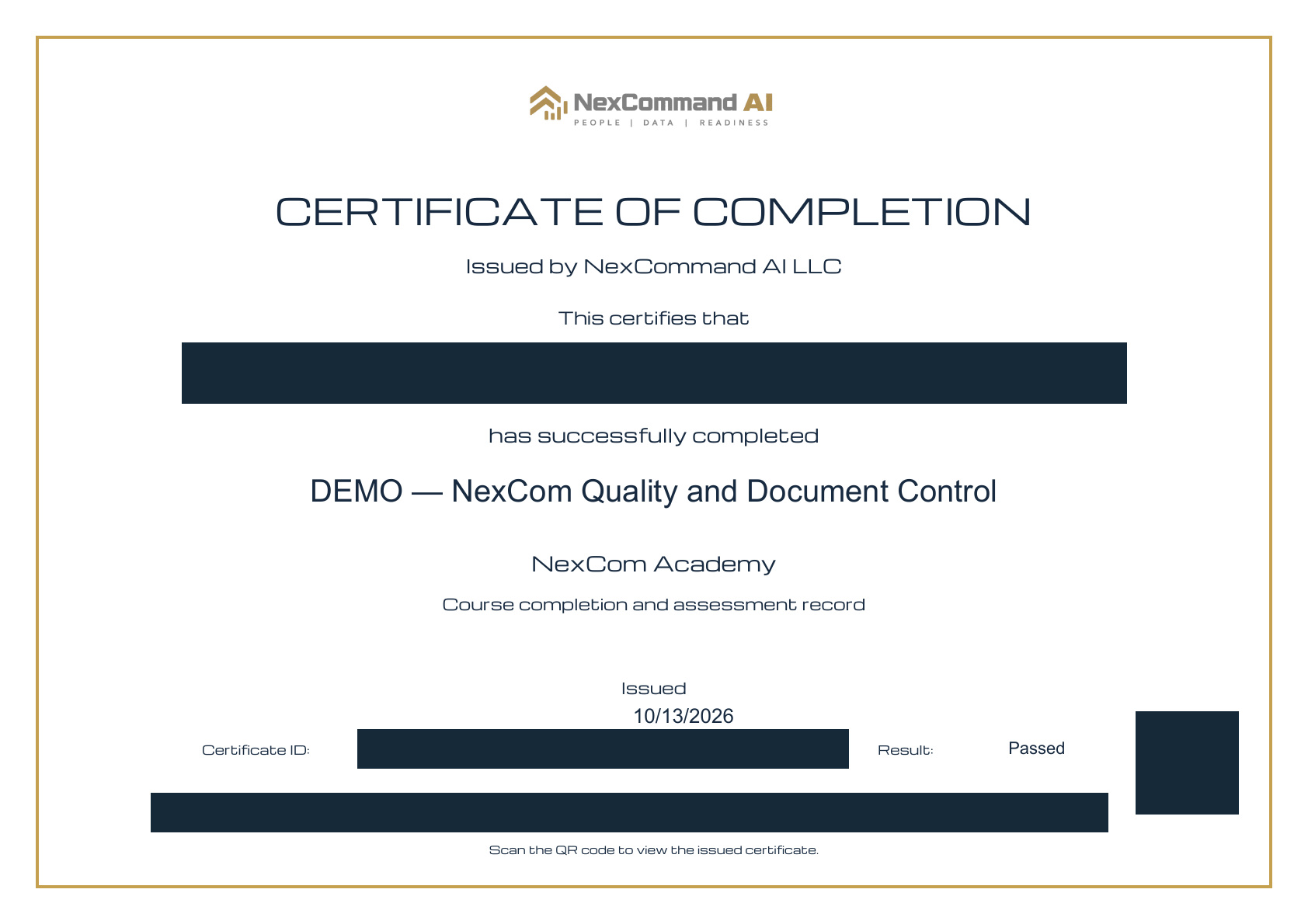
Verified result
An actual PDF was downloaded after the demo course reached 100% and Passed. The recipient, course and issue-date form values were present, the result was Passed, and the QR decoded to the same Academy host’s certificate route. Raw PDF and unredacted verification links are kept privately and are not included in the public site.
Troubleshooting
If Certificates is empty, review the certificate policy and overall course passing result. If the PDF does not open, use the native Download action and check service access. Use the achievement record for the configured validity date; do not infer unlimited validity from a PDF that displays only its issue date. A completion certificate does not automatically prove job competency or organization-level certification.