
Review stock balances and ageing
Open Supply Chain → Inventory → Stock Balance. Set Company, From Date and To Date. Choose item and warehouse filters where needed. Enable Show Stock Ageing Data when you need ageing columns.
Before you start
Use your authorized ERP account and the correct company. These screenshots use fictional staging records. Replace the example quantities, dates, warehouses and values with your approved business information. Submission affects the relevant workflow or stock ledger; review the draft first.
Addresses used in this tutorial
ERP_URL is your organization’s ERP address. ACADEMY_URL is the Academy base address: staging uses https://erpstaging.nexcommand.ai/academy; production uses https://academy.nexcommand.ai. Saved record IDs and temporary draft IDs differ between installations. Course IDs and element IDs in the example are not portable to another installation.
Step-by-step instructions
Choose company and reporting period
Open Supply Chain → Inventory → Stock Balance. Set Company, From Date and To Date. Choose item and warehouse filters where needed. Enable Show Stock Ageing Data when you need ageing columns.
- Example / selection
- NexCommand AI LLC; September 13 to October 13, 2026
- Expected result
- The report scope and ageing option are explicit.
{ERP_URL}/desk/query-report/Stock%20Balance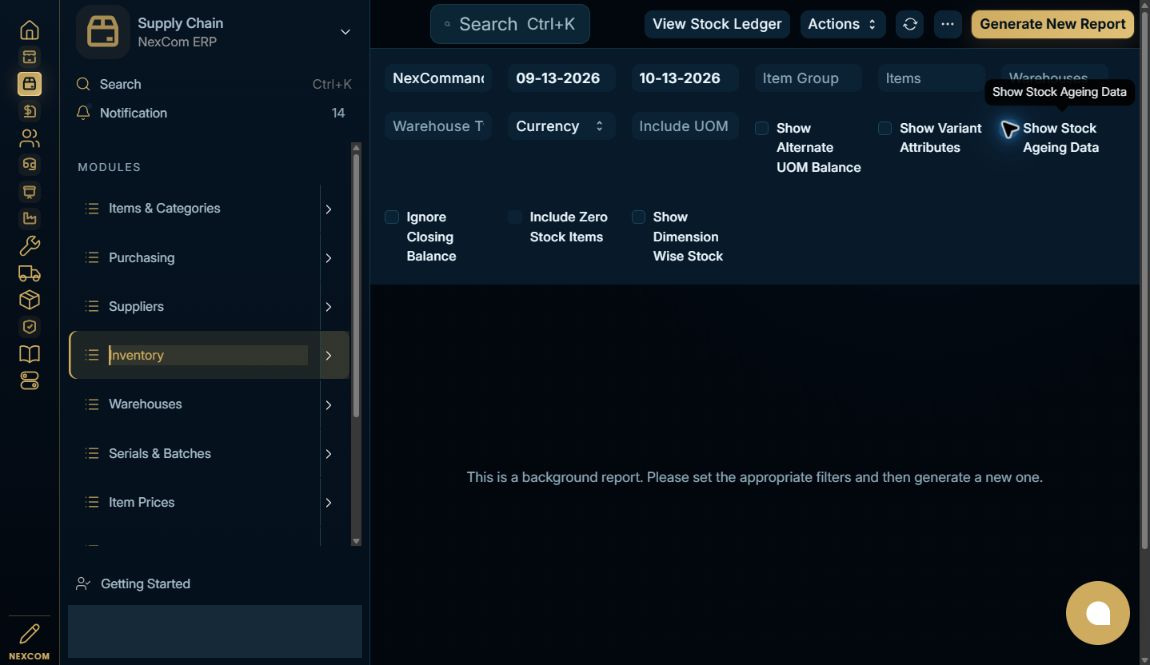
Generate and inspect balances
Choose Generate New Report or Rebuild and wait for the prepared report to finish. Use the table Item filter to isolate a record. Review warehouse-level Balance Qty and Balance Value against submitted stock movements.
- Example / selection
- NC-DOCS-STOCK-01: Receiving 7, Stores 2
- Expected result
- The report agrees with the posted receipt, transfer and physical count.
{ERP_URL}/desk/query-report/Stock%20Balance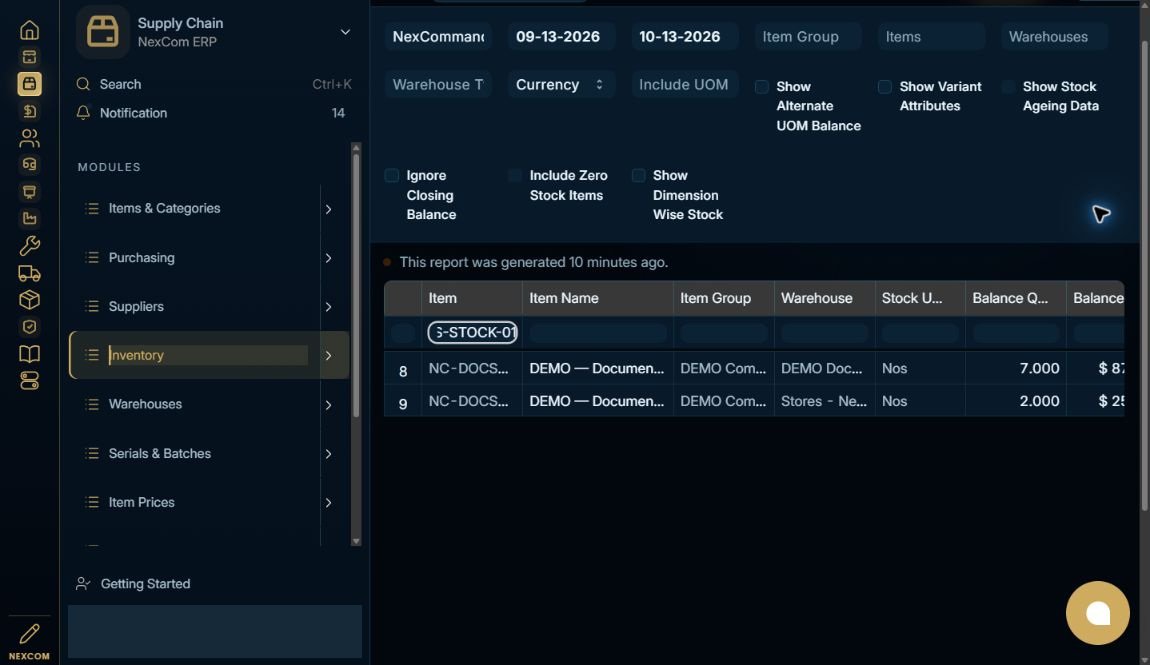
Read ageing columns
Scroll the result table horizontally to Average Age, Earliest Age and Latest Age. Keep the same item and warehouse scope while comparing rows. Newly received stock in the same reporting day can show zero age.
- Example / selection
- Sensor ageing columns show zero in this example
- Expected result
- Ageing is read alongside quantity and valuation.
{ERP_URL}/desk/query-report/Stock%20Balance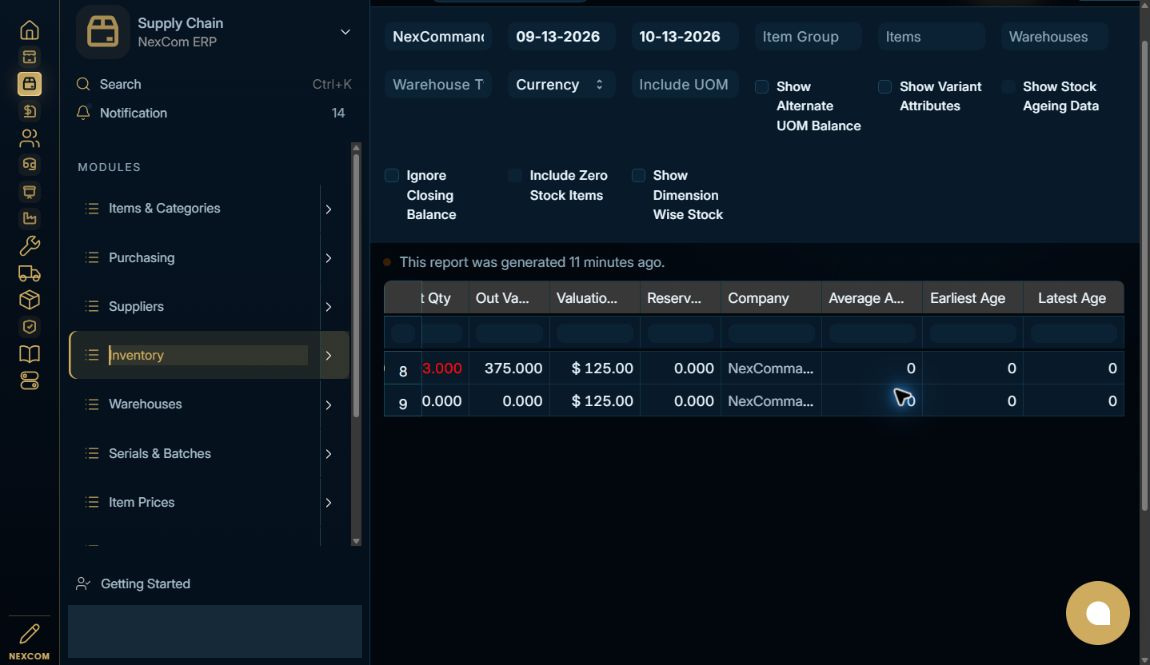
Verified result
The completed staging report was inspected and its sensor balances matched the stock ledger. Ageing columns were verified. A staging realtime routing problem discovered during this walkthrough was repaired; rebuilding the report refreshed the result automatically.
Troubleshooting
Wait for Link search results and choose the exact record. Leave each edited field to commit its value. Check required dates in every item row. A saved draft and a submitted record are different states. If validation fails, correct the highlighted field and verify the saved result before continuing.