
Create and submit a purchase material request
Choose Supply Chain → Purchasing → Material Request.
Before you start
Use your authorized ERP account and the correct company. These screenshots use fictional staging records. Replace the example quantities, dates, warehouses and values with your approved business information. Submission affects the relevant workflow or stock ledger; review the draft first.
Addresses used in this tutorial
ERP_URL is your organization’s ERP address. ACADEMY_URL is the Academy base address: staging uses https://erpstaging.nexcommand.ai/academy; production uses https://academy.nexcommand.ai. Saved record IDs and temporary draft IDs differ between installations. Course IDs and element IDs in the example are not portable to another installation.
Step-by-step instructions
Open Purchasing
Choose Supply Chain → Purchasing → Material Request.
- Example / selection
- Request Materials
- Expected result
- The procurement starting point opens.
{ERP_URL}/desk/nexcom-workflow/Supply%20Chain/Purchasing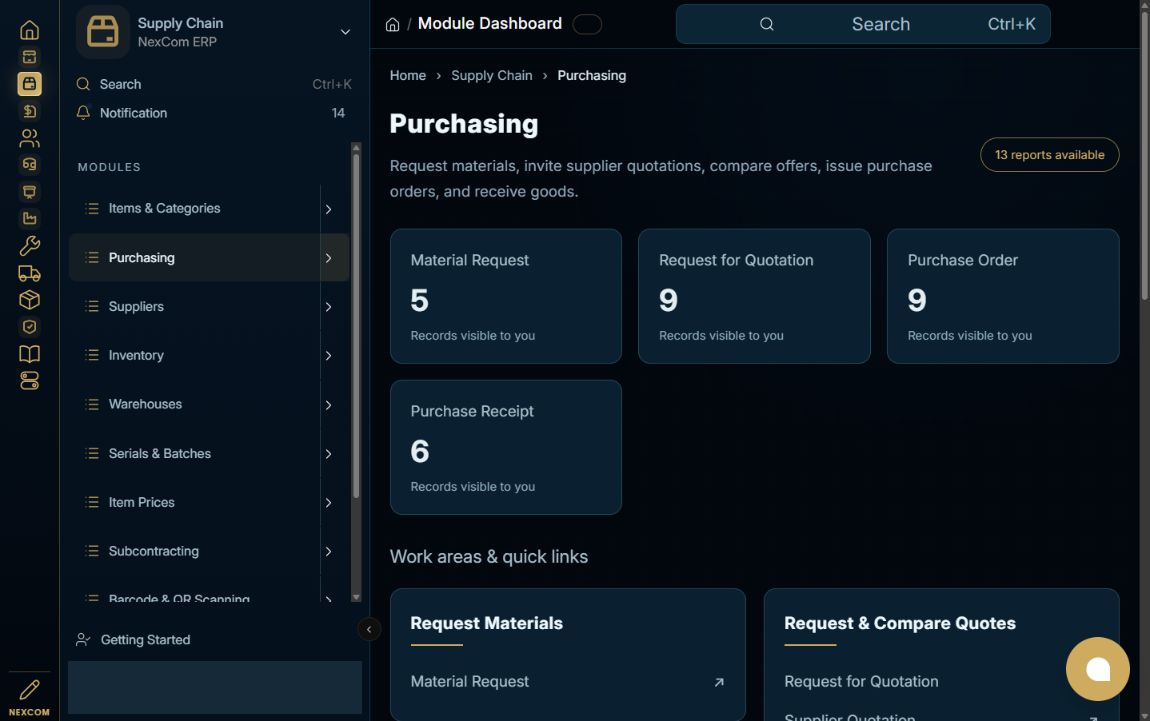
Check existing requests
Review the list and select Add Material Request for a new requirement.
- Example / selection
- New demo requirement
- Expected result
- The new request form opens.
{ERP_URL}/desk/material-request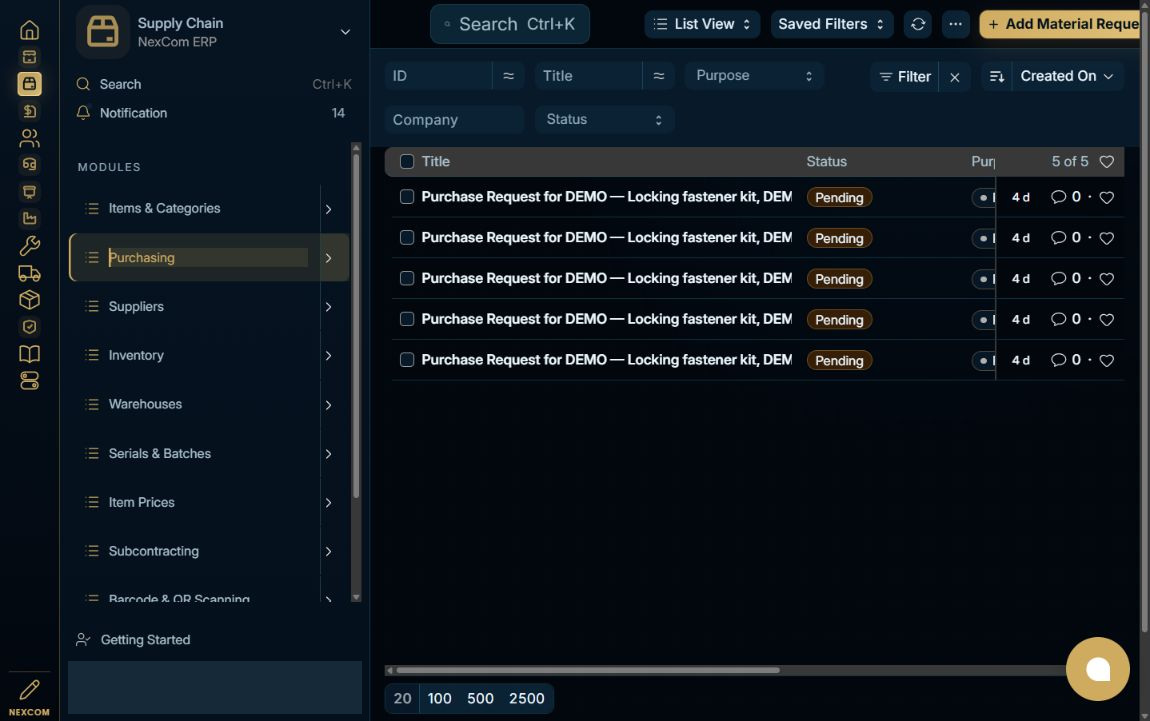
Set purpose and dates
Choose Purchase. Set Required By and the receiving warehouse. Type the date in the displayed format and leave the field to commit it.
- Example / selection
- Required by October 23, 2026
- Expected result
- The request has its procurement purpose and schedule.
{ERP_URL}/desk/material-request/new-material-request-{TEMP_ID}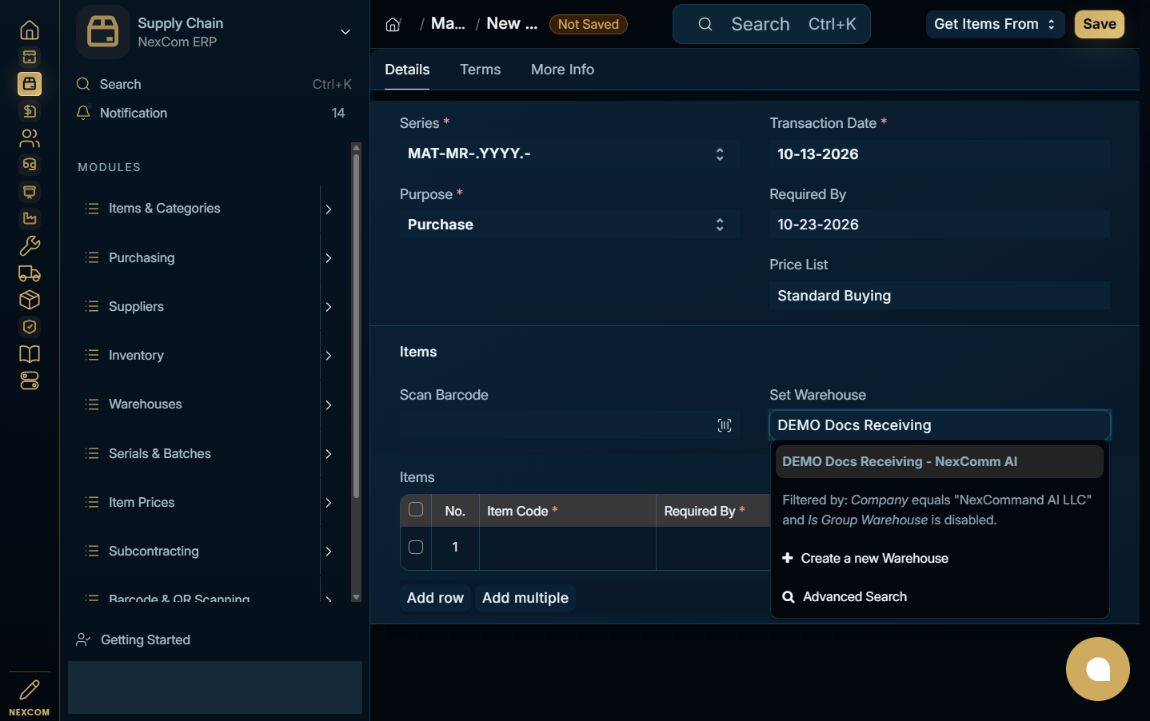
Add requested items
Select the exact item, quantity, UOM and warehouse. Verify Required By in every row; a blank row date blocks saving.
- Example / selection
- 10 Nos, NC-DOCS-STOCK-01
- Expected result
- Every line is complete.
{ERP_URL}/desk/material-request/new-material-request-{TEMP_ID}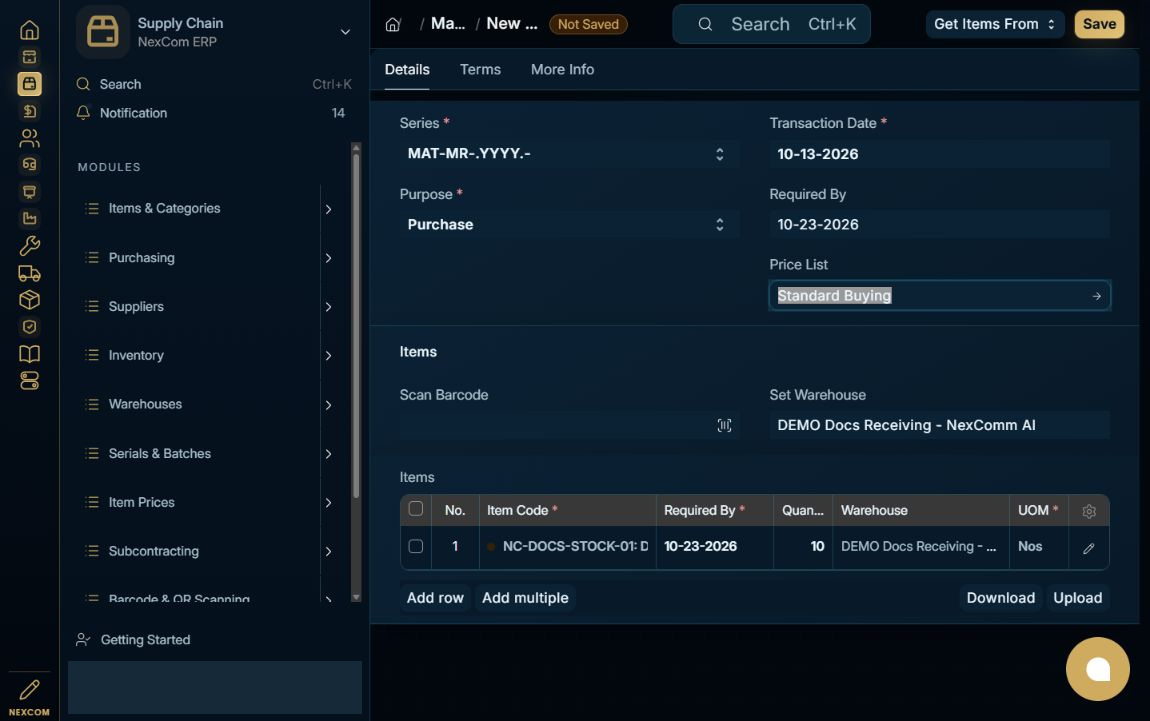
Save and review
Save and review Draft status and the permanent request identifier.
- Example / selection
- MAT-MR-2026-00001
- Expected result
- The draft is saved.
{ERP_URL}/desk/material-request/{RECORD_ID}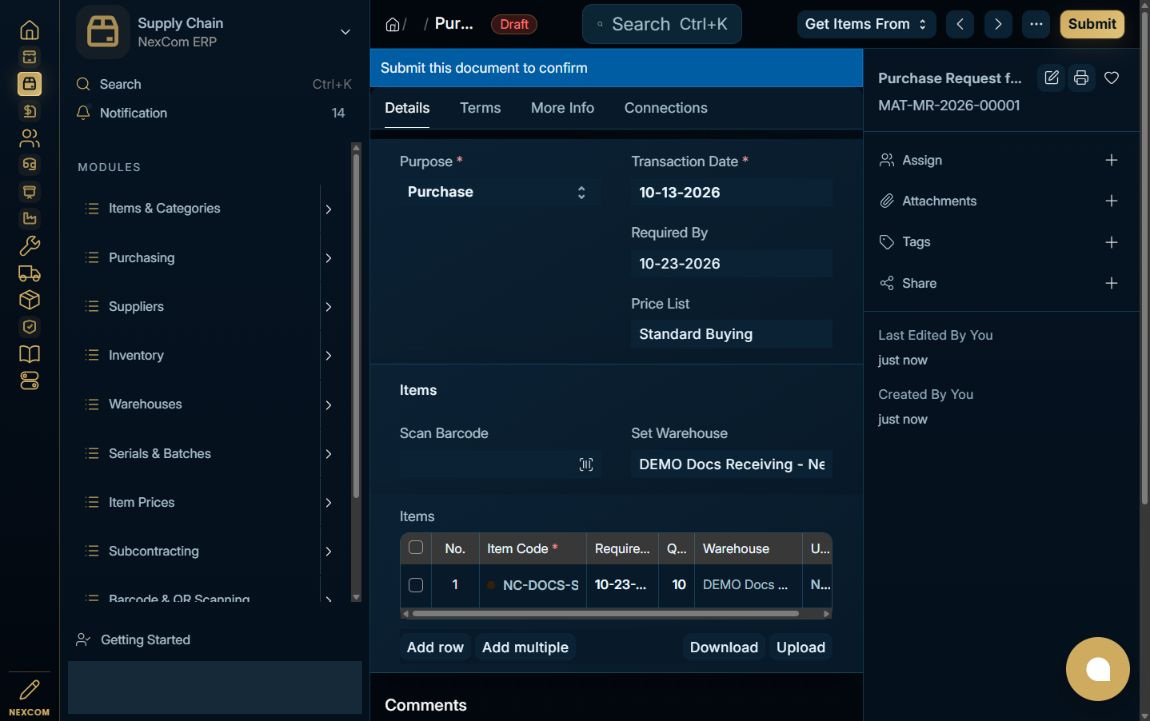
Submit the requirement
Choose Submit and confirm after reviewing the requirement.
- Example / selection
- MAT-MR-2026-00001
- Expected result
- The request enters procurement.
{ERP_URL}/desk/material-request/{RECORD_ID}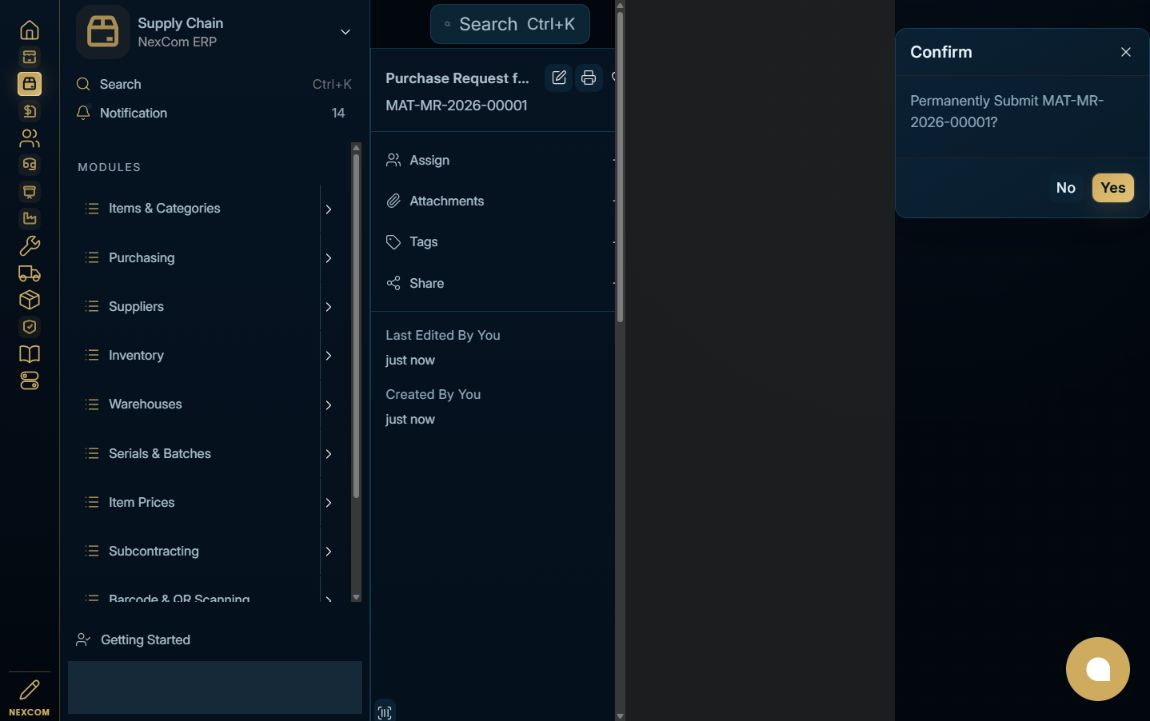
Understand Pending status
Verify Pending after submission. Pending means purchasing fulfillment remains outstanding; it does not mean the record is an unsaved draft.
- Example / selection
- Pending purchase request
- Expected result
- Create actions are available for downstream procurement.
{ERP_URL}/desk/material-request/{RECORD_ID}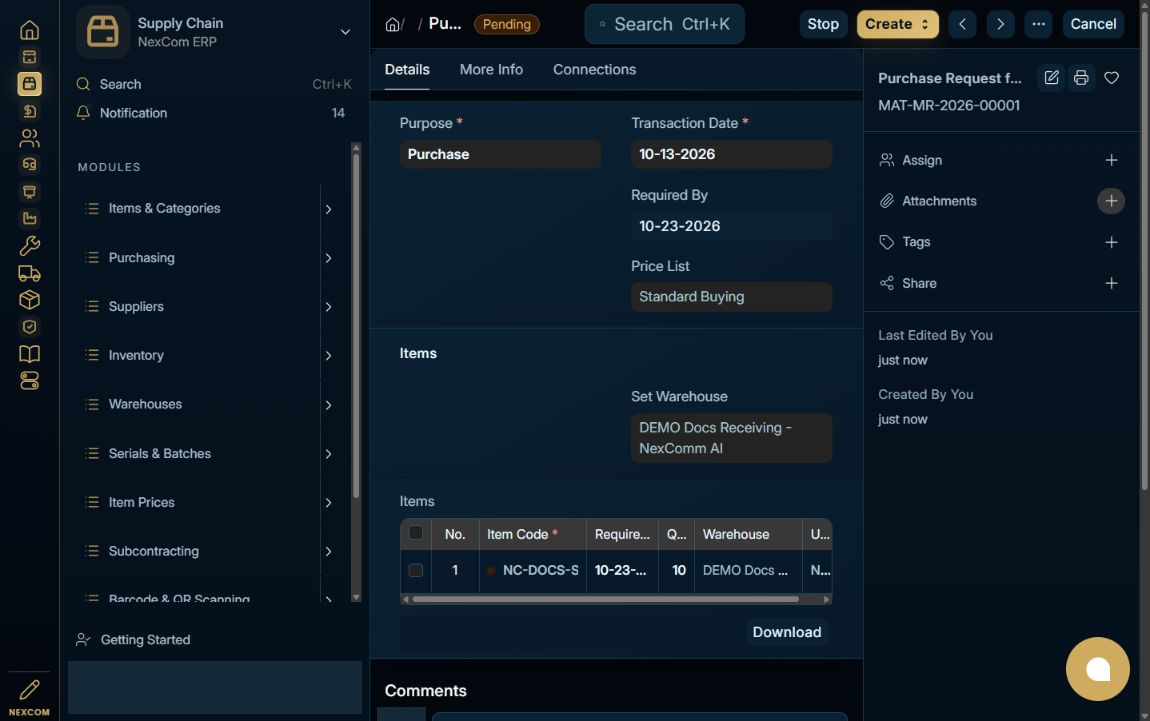
Verified result
The request was submitted through the UI and used as the source for RFQ PUR-RFQ-2026-00005.
Troubleshooting
Wait for Link search results and choose the exact record. Leave each edited field to commit its value. Check required dates in every item row. A saved draft and a submitted record are different states. If validation fails, correct the highlighted field and verify the saved result before continuing.