
Maintain an item price and its validity
Choose Supply Chain → Item Prices. Open Item Price to manage an item rate or Price List to review its buying/selling applicability and currency.
Before you start
Use your authorized ERP account and the correct company. These screenshots use fictional staging records. Replace the example quantities, dates, warehouses and values with your approved business information. Submission affects the relevant workflow or stock ledger; review the draft first.
Addresses used in this tutorial
ERP_URL is your organization’s ERP address. ACADEMY_URL is the Academy base address: staging uses https://erpstaging.nexcommand.ai/academy; production uses https://academy.nexcommand.ai. Saved record IDs and temporary draft IDs differ between installations. Course IDs and element IDs in the example are not portable to another installation.
Step-by-step instructions
Open Item Prices
Choose Supply Chain → Item Prices. Open Item Price to manage an item rate or Price List to review its buying/selling applicability and currency.
- Example / selection
- Item Prices
- Expected result
- The pricing work area opens.
{ERP_URL}/desk/nexcom-workflow/Supply%20Chain/Item%20Prices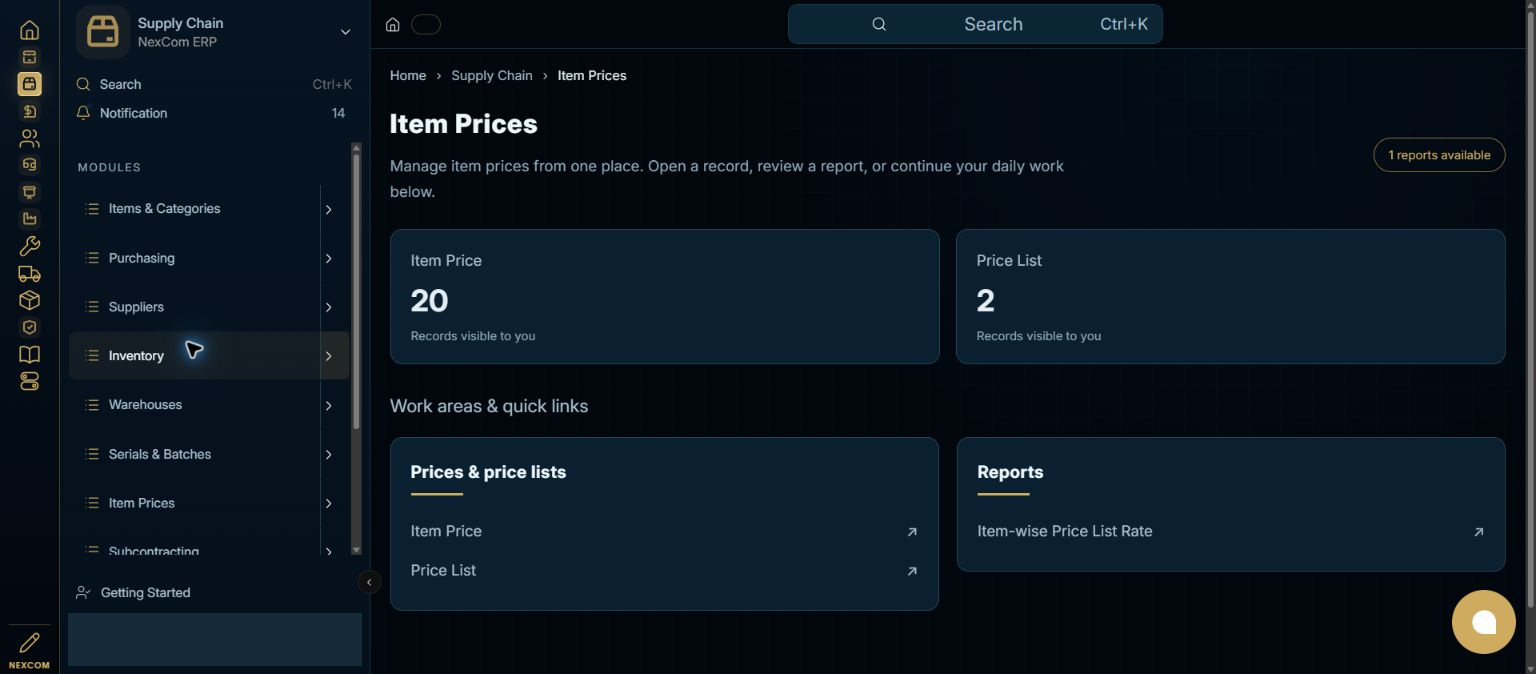
Check the price list
Open the intended Price List. Verify Enabled, Currency and Buying or Selling. Do not infer applicability only from its name. Price Not UOM Dependent affects how units are treated.
- Example / selection
- Standard Buying; USD; Buying enabled
- Expected result
- The intended buying list is verified.
{ERP_URL}/desk/price-list/{RECORD_ID}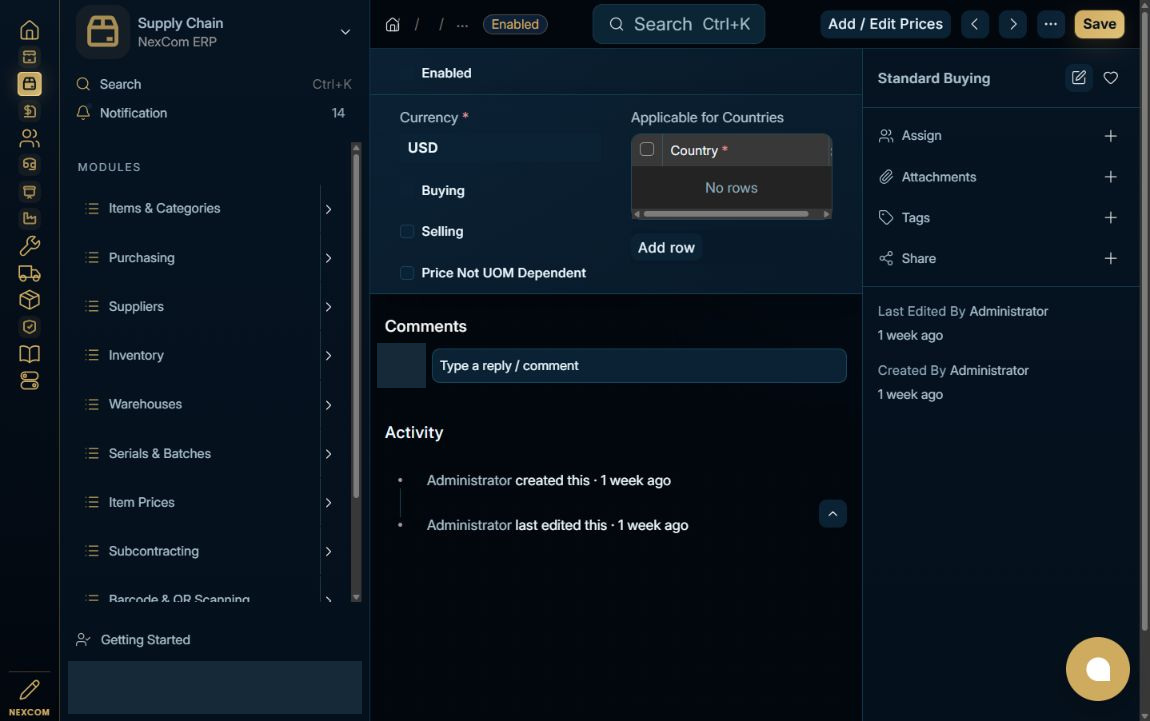
Check existing prices
Open Item Price. Search the item and price list before adding a new rate; review existing dates and any supplier or batch restrictions.
- Example / selection
- NC-DOCS-STOCK-02
- Expected result
- Unintended overlapping records are avoided.
{ERP_URL}/desk/item-price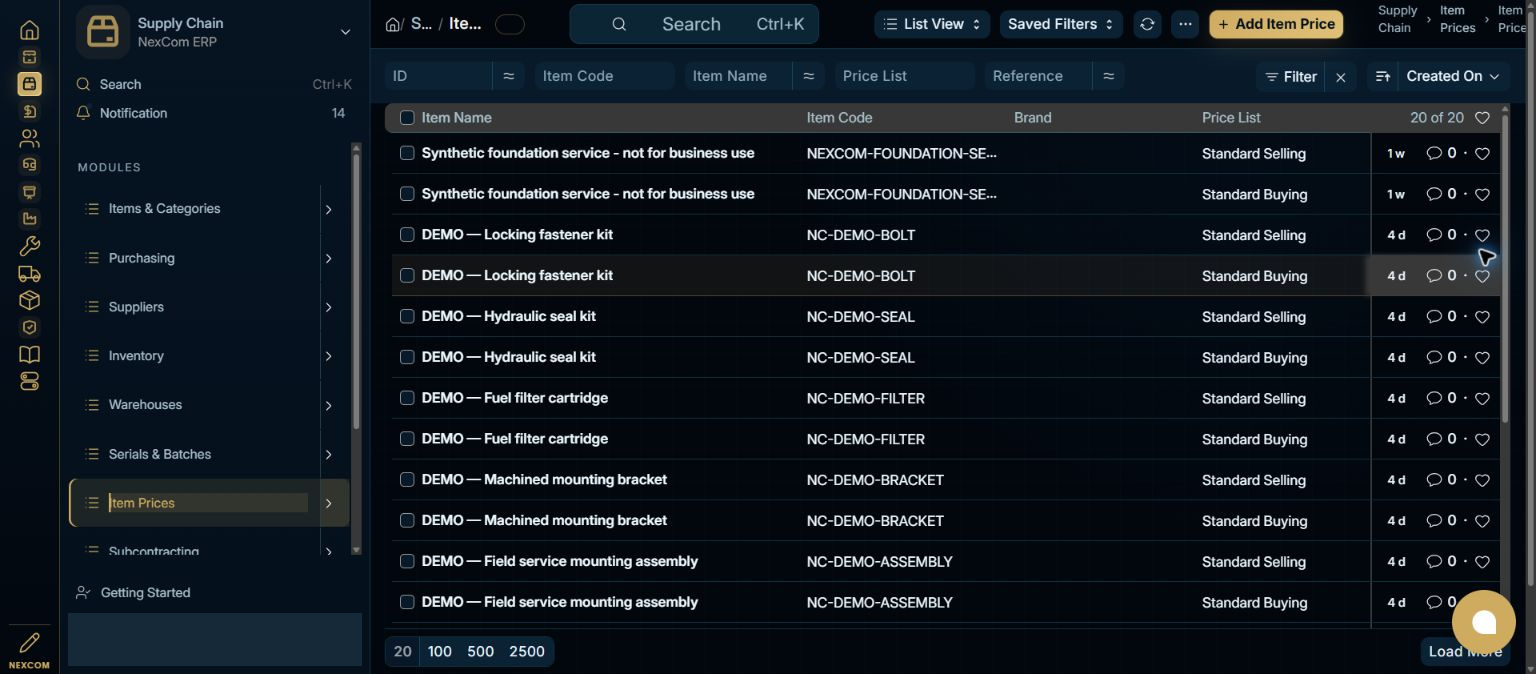
Enter the item rate
Select Item Code, UOM and Price List. Enter Rate and Valid From. Populate optional supplier, batch or expiry only where the offer requires that restriction.
- Example / selection
- Nos; Standard Buying; USD 125; October 13, 2026
- Expected result
- The price describes a specific item, unit and effective period.
{ERP_URL}/desk/item-price/new-item-price-{TEMP_ID}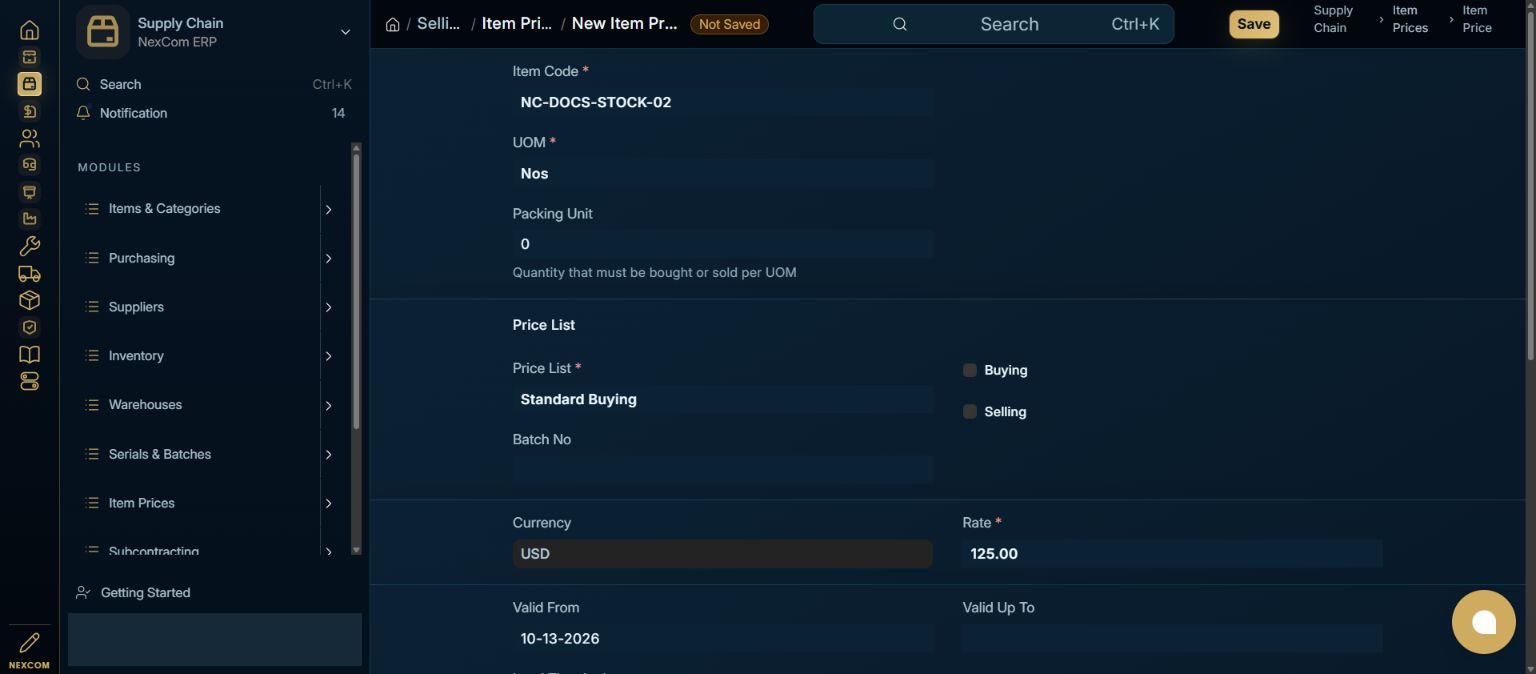
Save and verify effective dates
Save, reopen and review currency, rate and validity. A blank Valid Up To means no explicit ending date was entered; maintain it when the offer expires. Review the rate selected in a test procurement transaction.
- Example / selection
- USD 125; Valid From October 13, 2026
- Expected result
- The saved value persists and can be checked against the transaction.
{ERP_URL}/desk/item-price/{RECORD_ID}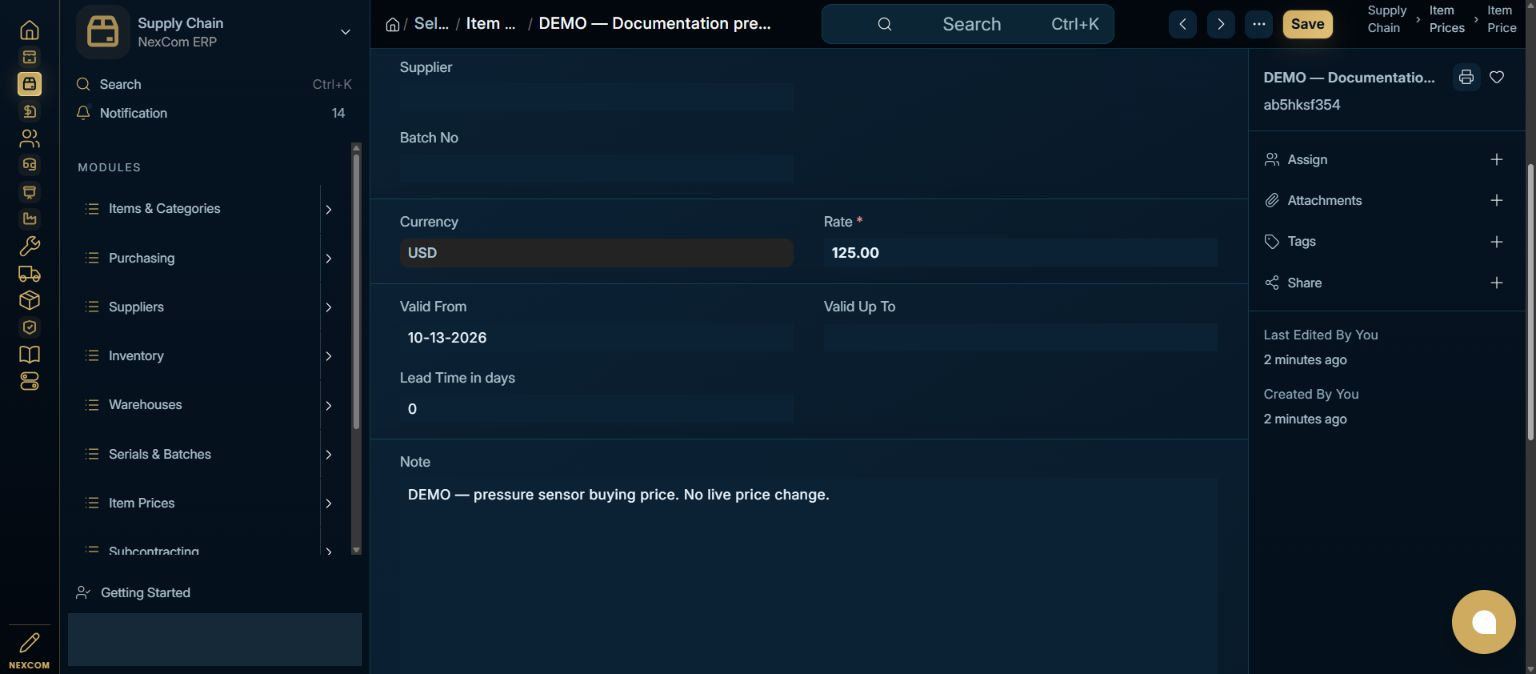
Verified result
The price record ab5hksf354 was saved for NC-DOCS-STOCK-02 with Nos, Standard Buying, USD 125 and the displayed effective date. Saved Buying applicability was verified. The receipt tutorial uses this pressure sensor and valuation rate. The scanner example uses the earlier NC-DOCS-STOCK-01 sensor; transaction price selection must be checked independently.
Troubleshooting
Wait for Link search results and choose the exact record. Leave each edited field to commit its value. Check required dates in every item row. A saved draft and a submitted record are different states. If validation fails, correct the highlighted field and verify the saved result before continuing.