
Review part-number and CAGE references
Open the Item → FED LOG tab. Verify the NSN, NIIN, Federal Supply Group and Class against the authorized catalog record before associating part references. This training item uses a fictional identifier.
Before you start
Use your authorized ERP account and the correct company. These screenshots use fictional staging records. Replace the example quantities, dates, warehouses and values with your approved business information. Submission affects the relevant workflow or stock ledger; review the draft first.
Addresses used in this tutorial
ERP_URL is your organization’s ERP address. ACADEMY_URL is the Academy base address: staging uses https://erpstaging.nexcommand.ai/academy; production uses https://academy.nexcommand.ai. Saved record IDs and temporary draft IDs differ between installations. Course IDs and element IDs in the example are not portable to another installation.
Step-by-step instructions
Identify the item before adding references
Open the Item → FED LOG tab. Verify the NSN, NIIN, Federal Supply Group and Class against the authorized catalog record before associating part references. This training item uses a fictional identifier.
- Example / selection
- NC-DOCS-CLASSIFICATION; not an official catalog assignment
- Expected result
- The item and reference source are distinguished.
{ERP_URL}/desk/item/{RECORD_ID}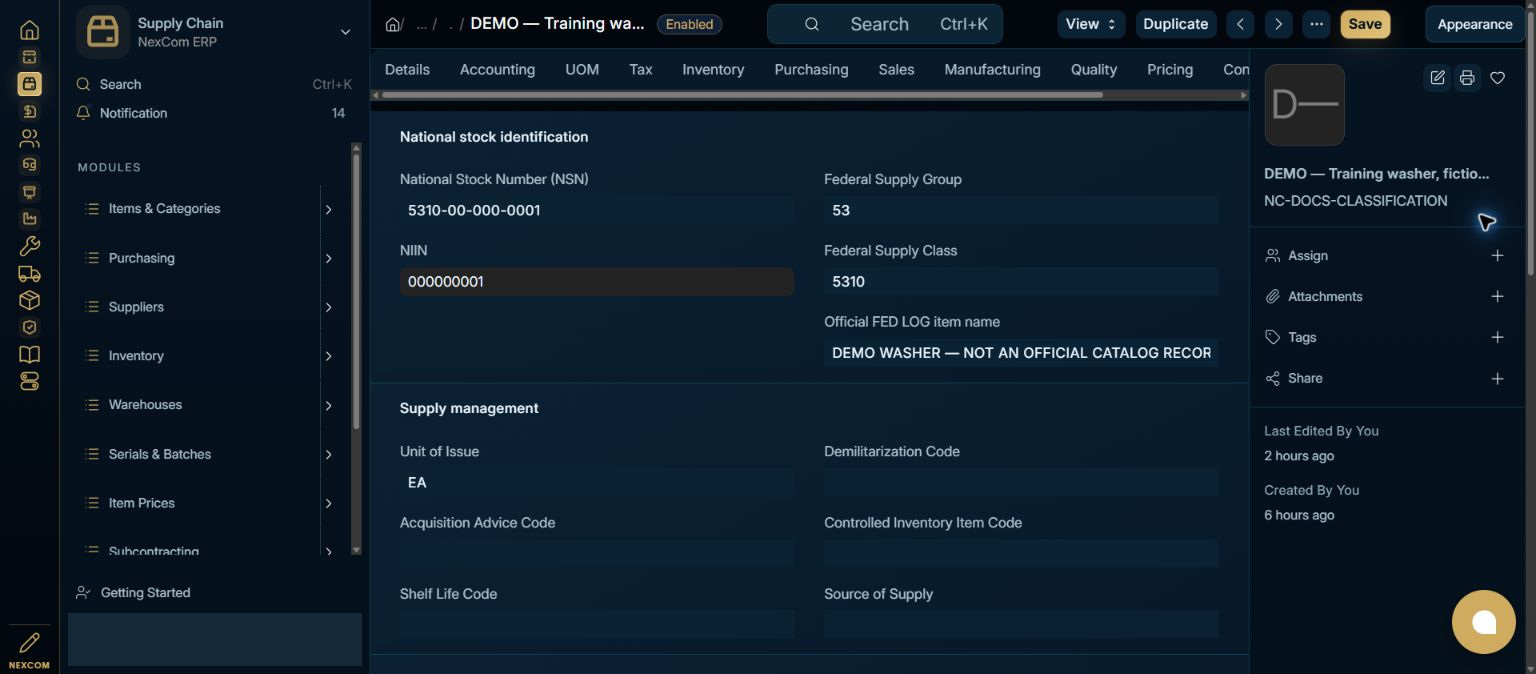
Open the part-reference row
Under Approved part references, choose Add row and open its editor. Enter the exact Part number and select the corresponding CAGE / NCAGE from the controlled directory. Do not invent an organization code or treat a catalog reference as supplier qualification. The pictured row is intentionally unfilled.
- Example / selection
- Part number and CAGE / NCAGE are required
- Expected result
- The reference-entry fields are visible.
{ERP_URL}/desk/item/{RECORD_ID}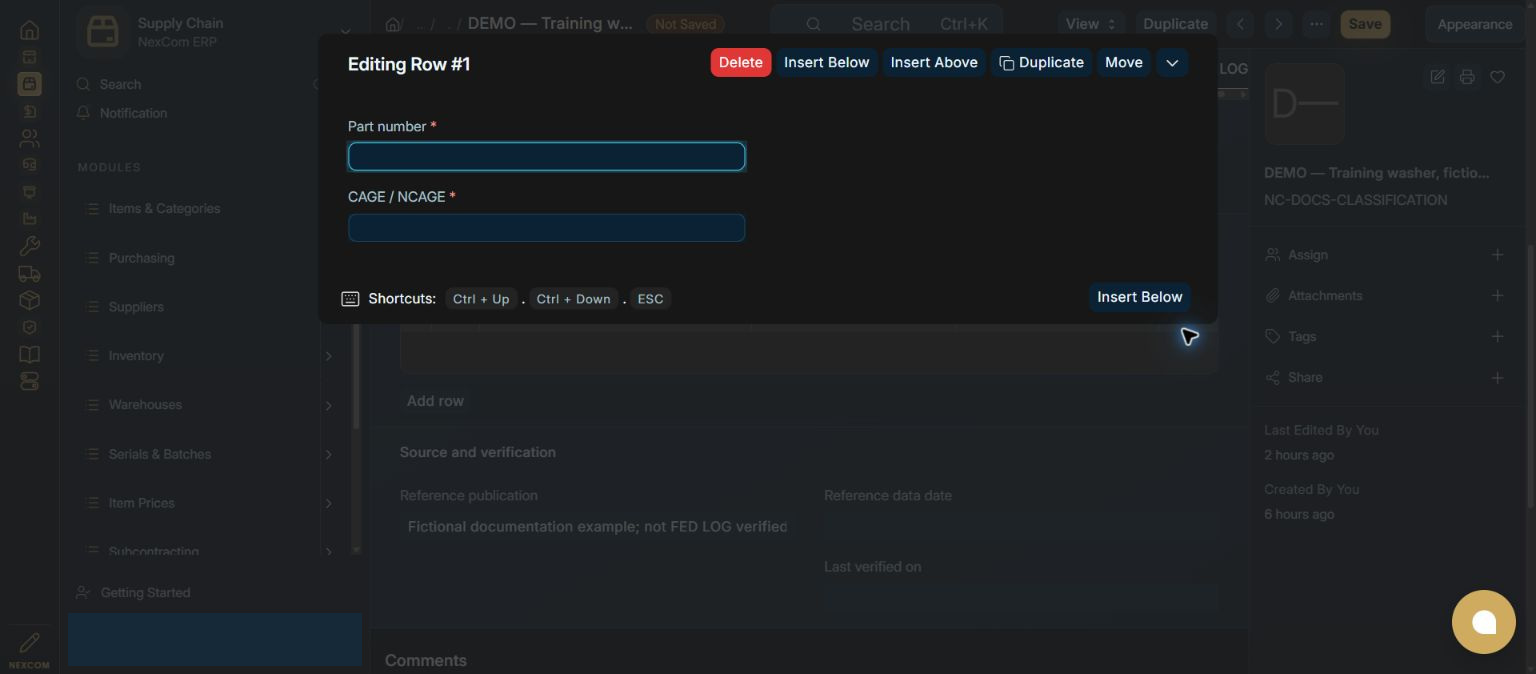
Verify before saving
Review source publication, reference date and last-verification date. Save only complete, source-supported references and reopen the item to check persistence. Keep unverified codes blank and handle source files according to their distribution restrictions.
- Example / selection
- Fictional documentation source; verification dates blank
- Expected result
- The process separates entry from authorized verification.
{ERP_URL}/desk/item/{RECORD_ID}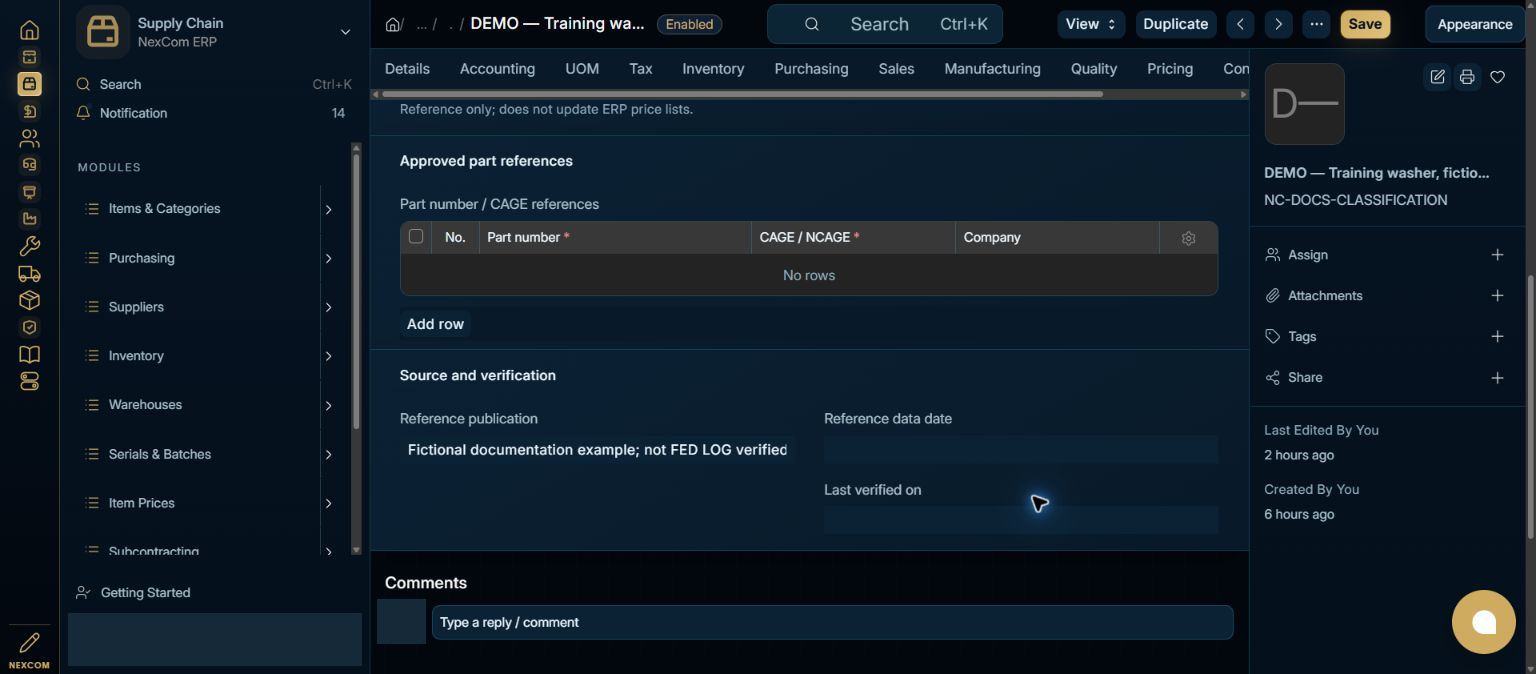
Verified result
The installed part-reference editor and required controlled CAGE field were inspected. The unfilled row was discarded, leaving the saved item unchanged. No new official CAGE assignment, approved part relationship or logistics-characteristics capability is asserted by this example.
Troubleshooting
Wait for Link search results and choose the exact record. Leave each edited field to commit its value. Check required dates in every item row. A saved draft and a submitted record are different states. If validation fails, correct the highlighted field and verify the saved result before continuing.