
Create and verify an ERP training program
Open Academy → Training & Skills → Training Program, or search Training Program. Review or filter the list for an existing program before selecting Add Training Program.
Before you start
Use an authorized HR or training account. Confirm the training purpose, company, trainer and any external supplier relationship. Check for an existing program before adding a duplicate. The examples below are fictional staging records.
Addresses used in this tutorial
ERP_URL is your organization’s ERP address. ACADEMY_URL is the Academy base address: staging uses https://erpstaging.nexcommand.ai/academy; production uses https://academy.nexcommand.ai. Saved record IDs and temporary draft IDs differ between installations. Course IDs and element IDs in the example are not portable to another installation.
Step-by-step instructions
Check existing programs
Open Academy → Training & Skills → Training Program, or search Training Program. Review or filter the list for an existing program before selecting Add Training Program.
- Example / selection
- Training Program list
- Expected result
- Existing programs and the Add action are visible.
{ERP_URL}/desk/training-program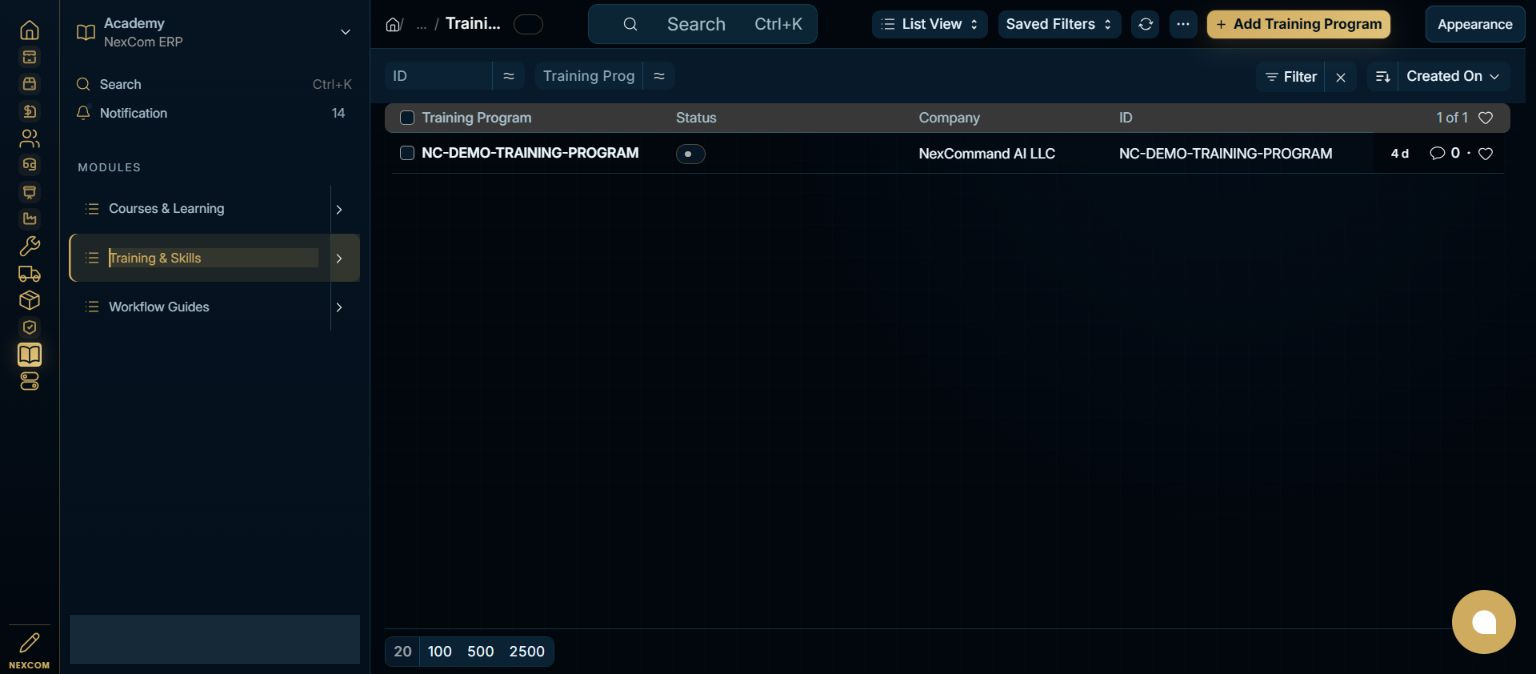
Complete the required program fields
Select Add Training Program. Enter a meaningful program name, select the Company link, and provide the required Description. Add trainer and supplier details when relevant; select the actual Supplier link instead of just mentioning a supplier in text.
- Example / selection
- DEMO — Docs Document Control; NexCommand AI LLC; DEMO Instructor
- Expected result
- The required fields identify the training program and its purpose.
{ERP_URL}/desk/training-program/new-training-program-{TEMP_ID}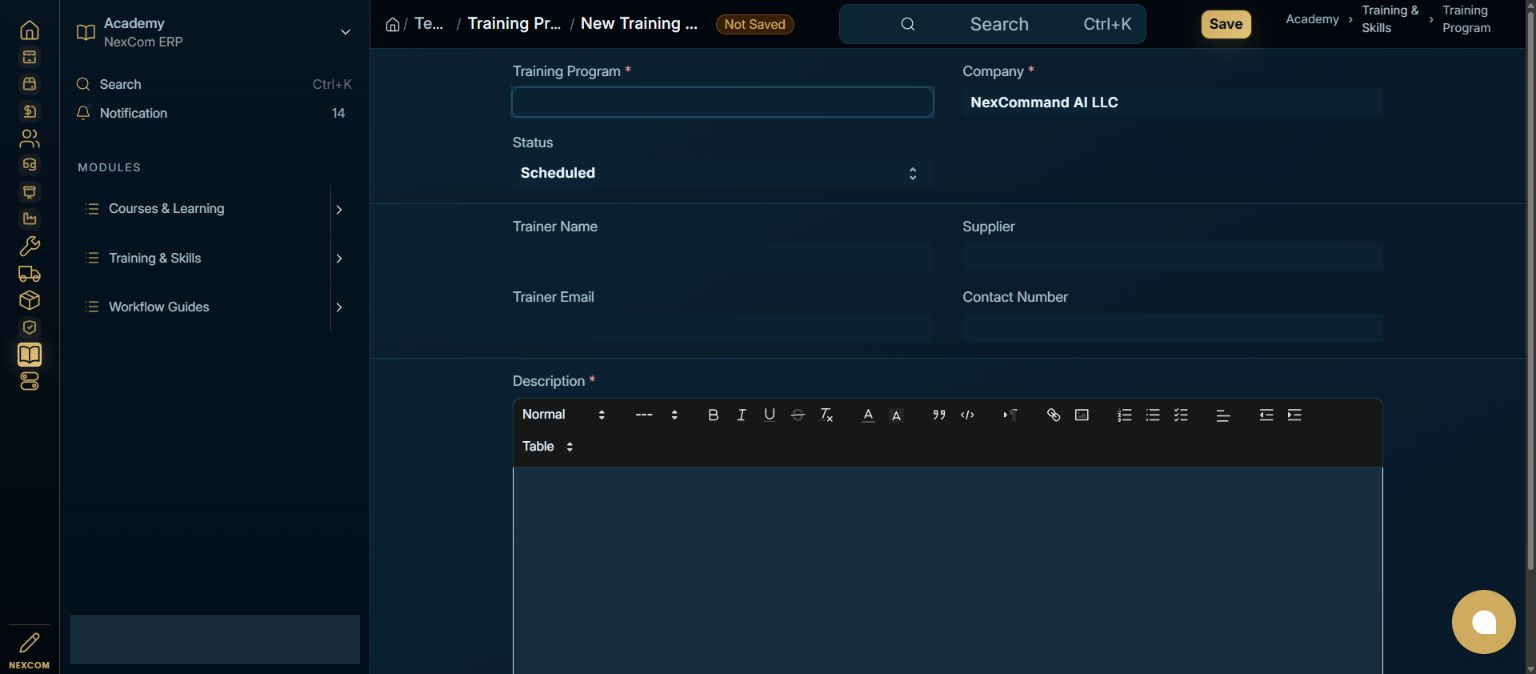
Review the purpose and status
Confirm that Status matches the program’s real lifecycle. Describe the learning objective, assessment approach and evidence expected. Keep sample records clearly marked as demonstrations. Review trainer contacts before using invitation or email actions.
- Example / selection
- Scheduled; controlled document lifecycle and evidence-based assessment
- Expected result
- The program is ready to save. No invitation or email action is taken in this exercise.
{ERP_URL}/desk/training-program/new-training-program-{TEMP_ID}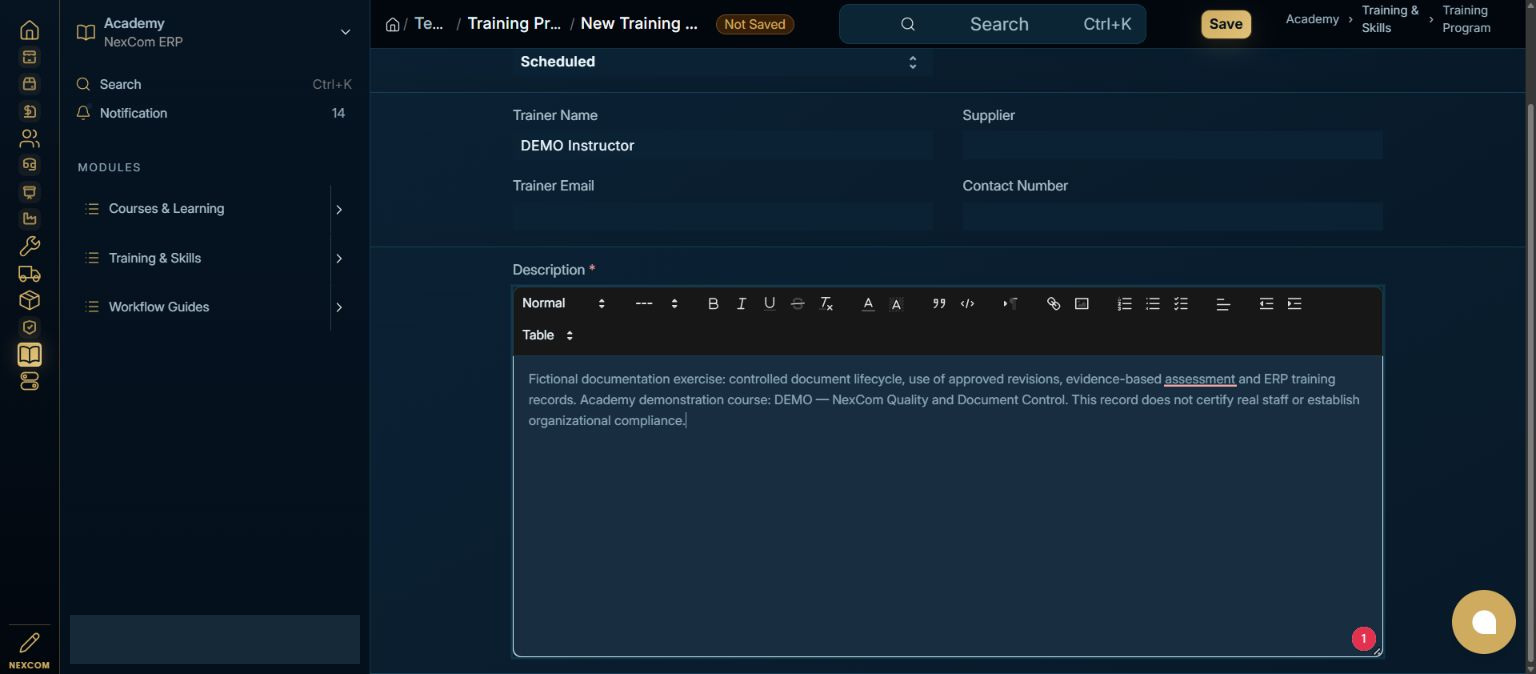
Save and verify the program
Choose Save. Confirm that the temporary new-record URL changes to the saved program name and that its values remain visible. The Training Events link on the saved dashboard connects this program with its event records.
- Example / selection
- Saved program DEMO — Docs Document Control
- Expected result
- The native save succeeded and the saved record can be reopened. Training Program is not a submittable transaction.
{ERP_URL}/desk/training-program/{RECORD_ID}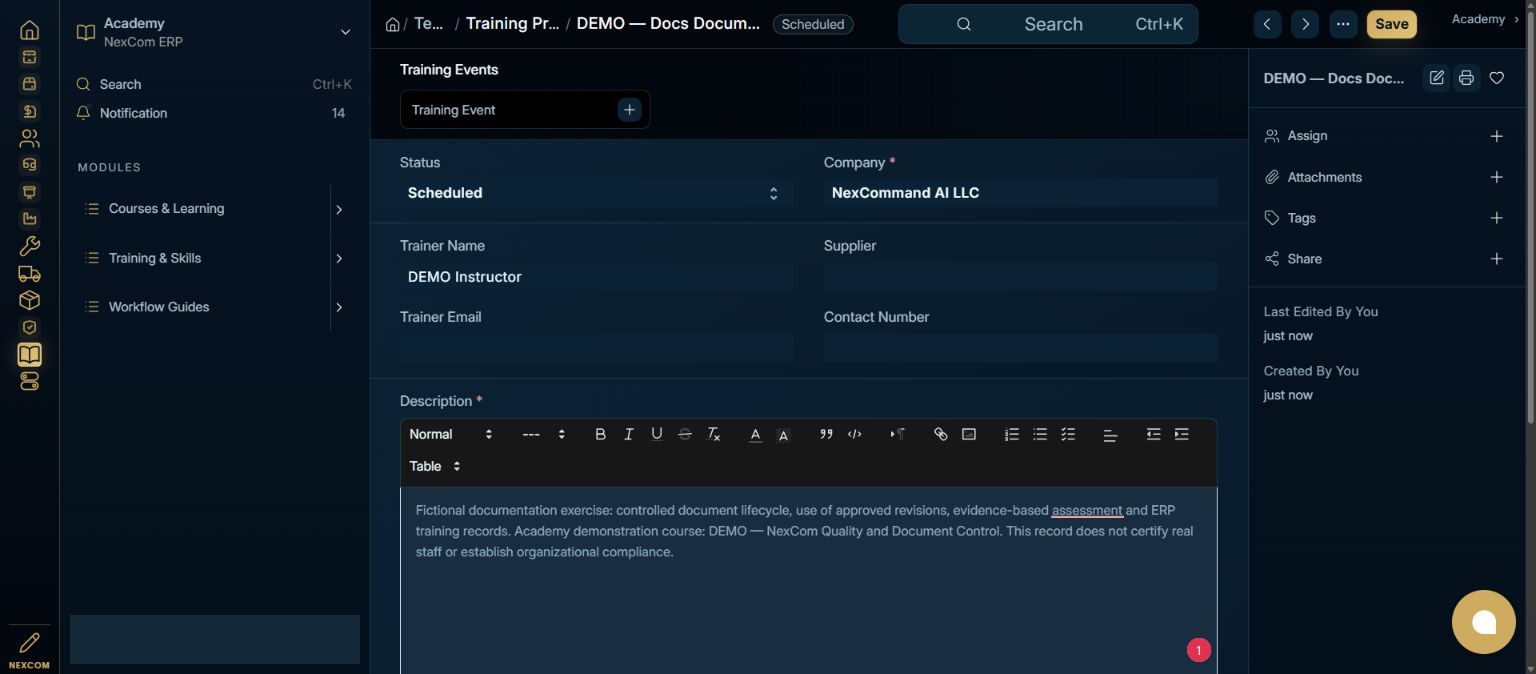
Verified result
The program was created and saved through the staging UI. Its saved name, Company, trainer and description were reviewed. No production training program or external invitation was created.
Troubleshooting
Required fields must be complete before saving. A Link field must identify an existing company or supplier. If a saved record seems missing, clear list filters and check the company and permissions. Program status is different from an event’s document status and from a learner’s course result.