
Use Point of Sale: navigation and daily work
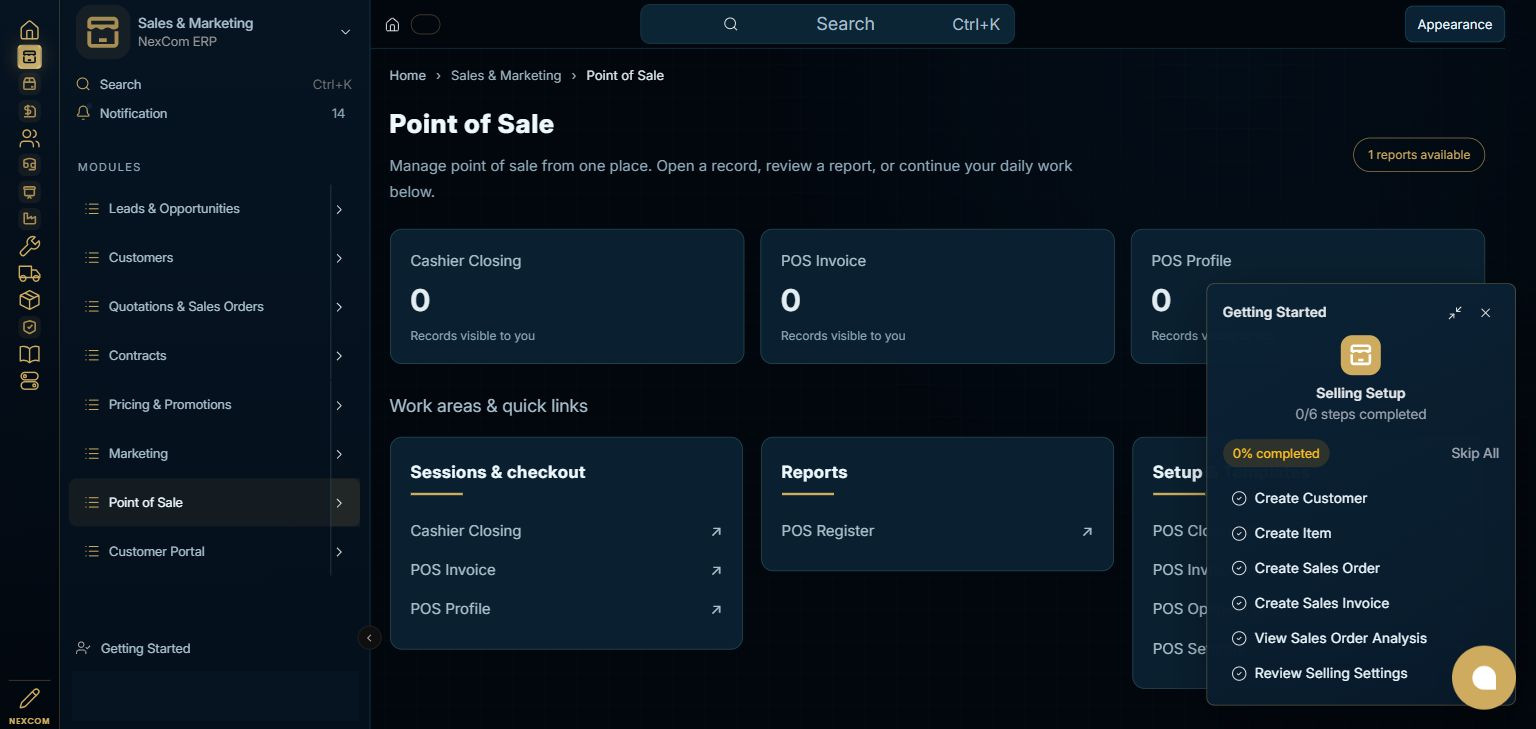
Open Sales & Marketing using the left app rail, then select Point of Sale in its module menu. The module dashboard gathers the available records, reports and setup links.
Before you start
Select the permitted POS profile, customer and items, then review totals and the payment method. Opening and closing activities, stock availability and posting rules depend on the configured profile and assigned permissions.
Find this module in the ERP
Sales & Marketing → Point of Sale
Step-by-step instructions
Open the module
Open Sales & Marketing using the left app rail, then select Point of Sale in its module menu. The module dashboard gathers the available records, reports and setup links.
{ERP_URL}/desk/nexcom-workflow/Sales%20%26%20Marketing/Point%20of%20SaleRecord forms may append /{RECORD_ID}; a new draft may use /new-{TYPE}-{TEMP_ID}. Query filters and selected tabs may add a query string or #fragment.
Continue the task
Choose the work area for your task. This staging dashboard provides Cashier Closing, POS Invoice, POS Profile, POS Closing Entry, POS Invoice Merge Log, POS Opening Entry, POS Settings. Use an existing record for a change; use Add/New only when a new record is needed and your role permits it.
{ERP_URL}/desk/nexcom-workflow/Sales%20%26%20Marketing/Point%20of%20SaleRecord forms may append /{RECORD_ID}; a new draft may use /new-{TYPE}-{TEMP_ID}. Query filters and selected tabs may add a query string or #fragment.
Continue the task
Before saving or taking a workflow action, verify the relevant party, company, dates, source links and permissions. Use the field reference linked below for the selected record type. This navigation tutorial does not submit a business transaction.
{ERP_URL}/desk/nexcom-workflow/Sales%20%26%20Marketing/Point%20of%20SaleRecord forms may append /{RECORD_ID}; a new draft may use /new-{TYPE}-{TEMP_ID}. Query filters and selected tabs may add a query string or #fragment.
Continue the task
For review, open POS Register. Check the report filters, company and date range before interpreting the results. A record count on the dashboard is not a financial total.
{ERP_URL}/desk/nexcom-workflow/Sales%20%26%20Marketing/Point%20of%20SaleRecord forms may append /{RECORD_ID}; a new draft may use /new-{TYPE}-{TEMP_ID}. Query filters and selected tabs may add a query string or #fragment.
Choose the relevant work area
Check the result
Check the selected record, company, source relationships, field values and available actions. A successful save, approval, submission, external notification and payment are separate events. The module screenshot is a navigation reference; it is not evidence that the business transaction described in this article was executed.
Troubleshooting
Use the installed work areas and the linked task tutorials below. Available actions and records depend on your role; external services may require their own permitted sign-in.